
 UK

Benefits of Open Frame Displays vs Embedded LCD Display Kits
An open frame display is a monitor in a bare metal chassis, built into a kiosk, machine or enclosure behind your own bezel. Here is how it compares with an embedded LCD kit, a panel mount monitor and an open frame panel PC, the specifications to check and how to mount and seal one.
An open frame display is a monitor supplied as a bare metal chassis, with the LCD panel, video controller and any touch screen already fitted but no outer bezel, stand or housing, so it can be built into a kiosk, machine or enclosure. It plugs into a computer like any other monitor, through HDMI, DisplayPort, VGA or USB-C, yet it disappears inside the product it serves.
Things Embedded works with machine builders and OEMs throughout the UK on built-in displays and the computers that drive them. Some of these applications need a frameless screen in a confined space, and there are two ways to get one: an open frame display, or an embedded LCD display kit, where you buy the bare panel, a controller board and cables and assemble them yourself. An embedded LCD kit can give the thinnest, lowest-cost build at high volume. An open frame monitor offers the same frameless result with far less integration work, because it connects to your chosen computer through standard plug-and-play video ports.
This guide explains what each option includes, compares them with panel mount and rear mount monitors and open frame panel PCs, then covers the specifications to check, how to mount and seal an open frame display, and how to choose between them.
Key takeaways
- 01Open frame means no housing
- The display comes in a metal chassis with mounting points; your enclosure supplies the bezel, the front seal and the look.
- 02An LCD kit is a set of parts
- Panel, controller board, backlight driver, cables and optional touch arrive separately, and you take on the integration, testing and EMC work.
- 03Standard inputs save design time
- An open frame display takes HDMI, DisplayPort, VGA or USB-C, so any industrial computer can drive it without panel timing work.
- 04Sealing comes from your build
- An open frame display is not sealed on its own; front IP65 depends on the gasket and bezel in your enclosure.
- 05Choose by volume and effort
- Kits suit very high volumes and custom shapes; open frame displays suit most OEM builds, prototypes and mixed-size ranges.
Open frame display vs LCD kit vs panel mount monitor
The table compares the four ways to put a screen inside equipment. Open frame displays and open frame panel PCs are finished products; an embedded LCD kit is a set of components; a panel mount monitor brings its own sealed front bezel.
| Open frame display | Embedded LCD kit | Panel mount monitor | Open frame panel PC | |
|---|---|---|---|---|
| What you receive | Panel, controller, power and optional touch in a metal chassis | Bare panel, controller board, backlight driver, cables, optional touch | Complete monitor with a front bezel and clamps | Open frame display with the computer built in |
| Video connection | HDMI, DisplayPort, DVI, VGA or USB-C | Usually LVDS or eDP from the computer, or via the controller board | HDMI, DisplayPort, DVI or VGA | Internal; the computer drives the panel |
| Integration effort | Low: mount it and plug it in | High: panel timing, backlight, cabling, touch and EMC | Low: cut out the panel and clamp it in | Lowest: one product to mount |
| Front sealing | Provided by your bezel and gasket | Provided by your enclosure | Front IP65 or IP66 bezel built in | Provided by your bezel and gasket |
| Appearance | Your own front design | Your own front design, thinnest build | The monitor’s own bezel | Your own front design |
| Compliance | Typically CE and FCC marked as a monitor | Usually your responsibility for the assembly | Typically CE and FCC marked as a monitor | Typically CE and FCC marked as a computer |
| Best for | Kiosks, machines, OEM equipment and prototypes | High-volume products and unusual shapes | Control cabinets and machine panels | Self-contained HMIs and kiosks |
For most of the projects we see, the choice is between an open frame monitor driven by a separate computer and an open frame panel PC that combines the two. A kit only pays back when the volumes are high enough to absorb the extra engineering.
What is an open frame display?
An open frame display, also called an open frame monitor or open frame LCD, is an LCD built into a bare metal chassis without an enclosure or bezel. The chassis carries the panel, the controller board that turns a video signal into something the panel can show, the power input and, where fitted, the touch screen and its controller. Mounting holes on the rear and sides, usually including a VESA pattern, let you fix it behind an aperture in your own housing.
That flexible design is the main advantage. The display can be installed into existing equipment or structural housings with open apertures, and the end user sees your bezel and your branding rather than a monitor. The chassis offers both rear and VESA mounting, so you can choose the fixing that suits the application.
Inside, the LCD works like any other. Its pixels are arranged in a rectangular grid, and each pixel has red, green and blue sub-pixels that can be turned on or off. With all sub-pixels off the screen appears black; with all of them fully on it appears white; and adjusting each level gives millions of colour combinations. A backlight behind the panel supplies the light, and on current displays that backlight is LED.
Where open frame displays are used
Open frame LCD monitors are used across commercial and industrial sectors: point-of-sale and self-service kiosks, ATMs and vending machines, ticketing, surveillance systems, gaming machines, industrial automation, food processing and manufacturing equipment. Our case study on self-service kiosk computers for OEMs shows how the display and computer are specified together.
What is an embedded LCD display kit?
An embedded LCD display kit is the same screen taken apart. Instead of a finished monitor, you receive the bare LCD panel and the parts needed to drive it, and you design the mechanical mounting, cabling, thermal path and electrical protection yourself. Kits give the thinnest, lightest build and the most freedom over shape, which is why they appear in high-volume consumer-facing products and slim enclosures.
The panel itself has no HDMI or DisplayPort socket. It takes a low-level digital interface, usually LVDS or eDP, with timings specific to that panel. Either the computer drives it directly from an LVDS or eDP output, which many embedded boards provide, or a controller board converts a standard video input into the panel’s signal.
| Kit component | What it does | What you have to get right |
|---|---|---|
| LCD panel | The glass, liquid crystal, polarisers and backlight | Panel datasheet, lifecycle and second source |
| Controller or scaler board | Converts HDMI, DisplayPort or VGA to LVDS or eDP and scales the image | Matching firmware to the panel’s resolution and timing |
| Backlight driver | Powers the LED backlight and controls brightness | Current setting, PWM dimming range and heat |
| Cables and connectors | Carry video, power and backlight signals | Length, shielding, pinout and strain relief |
| Touch screen and controller | Optional touch input, usually over USB or I²C | Bonding or gasket, grounding and driver support |
| On-screen display keypad | Optional brightness and input controls | Where it mounts and whether operators can reach it |
With a kit, the finished assembly is your product. Electromagnetic compatibility, safety marking and long-term supply of a matched panel and controller usually fall to you, and a change of panel revision can mean new firmware and new EMC testing. That is manageable at volume with an engineering team behind it; it is a lot to take on for a run of 50 machines.
Open frame or LCD kit: which should you choose?
An open frame LCD display offers the same frameless benefits as a kit whilst simplifying integration and pairing with your chosen computer. The decision usually comes down to volume, engineering time and how much of the display you want to own.
| Your situation | Usually the better fit | Why |
|---|---|---|
| Prototype or first production run | Open frame display | No panel timing or EMC work, and the same model can follow you into production |
| Tens to a few hundred machines a year | Open frame display | Integration cost is spread over too few builds for a kit to pay back |
| Several screen sizes across one product range | Open frame display | Each size arrives finished, with the same inputs and mounting style |
| Thousands of identical products | Embedded LCD kit | Lower cost per build and the thinnest assembly justify the engineering |
| Unusual shape or very thin enclosure | Embedded LCD kit | You control every millimetre of the stack |
| Computer and screen in one product | Open frame panel PC | One part to mount, one power input, no video cable |
| Sealed front in a cabinet door | Panel mount monitor | The front IP65 bezel and clamps are already part of the monitor |
Are you designing the display, or designing a product that needs one? If it is the second, an open frame display is usually the right starting point.
Open frame vs panel mount and rear mount monitors
Open frame is one of several mounting styles for a built-in screen. The difference is what forms the front face and the seal.
| Mounting style | How it fits | Front face | Typical sealing |
|---|---|---|---|
| Open frame | Fixed behind an aperture from inside the enclosure, by side brackets, rear studs or VESA | Your bezel | Depends on your gasket; often front IP65 when designed for it |
| Panel mount | Pushed through a cut-out from the front and clamped from behind | The monitor’s own bezel | Front IP65 or IP66 as standard on industrial models |
| Rear mount | Bolted to the back of a panel so the glass sits behind or flush with it | Your panel | Depends on your panel and gasket |
| Chassis or VESA | A complete enclosed monitor on an arm, wall bracket or desk | The monitor’s own housing | IP rating of the whole monitor |
For a cabinet door or machine panel, panel mount monitors are the quickest route to a sealed front. For a flush glass finish set into a sheet-metal panel, rear mount monitors fit from behind. Where the screen sits on an arm or desk, an enclosed chassis monitor is simpler. Our guide to choosing an industrial HMI puts all of these in the context of the operator station.
Key specifications for an open frame display
With plenty of options on the market, these are the specifications that decide whether an open frame display suits your product.
| Specification | Typical range | What to check |
|---|---|---|
| Screen size | 5.7 inch (5.7″) to 42.5 inch (42.5″) | Viewing distance and the space inside the enclosure |
| Aspect ratio | 4:3, 5:4, 16:9, 16:10 and stretched bar formats | Match the software layout and any legacy cut-out |
| Resolution | 640 × 480 to 1920 × 1080 and above | Text size at the viewing distance; full HD for detailed screens |
| Brightness | About 250–500 nits indoors; 1,000–1,500 nits for bright light | Where the screen will be installed and how much light falls on it |
| Contrast ratio | About 500:1 to 4000:1 | Higher contrast helps dark backgrounds and alarm colours |
| Touch | None, PCAP, resistive or SAW | What operators touch it with and whether gestures are needed |
| Video input | VGA, HDMI, DVI, DisplayPort or USB-C | The outputs on the computer that will drive it |
| Power | Typically 12 V DC, or 5 V over USB-C on small models | Available supply rails and cable routing |
| Operating temperature | Often 0 to 50 °C; wider on some models | Heat inside the enclosure, not just room temperature |
Size, format and resolution
Open frame LCD monitors range from screens as small as 5.7″ to large format versions, with 27″ and 32″ popular for retail and signage and 42.5″ available for large installations. They come in the industry-standard monitor resolutions and in both 4:3 and widescreen formats. High resolutions such as 1920 × 1080 full HD and 4K tend to be most popular in retail and digital signage, where content is king. Stretched displays with bar formats such as 1920 × 720 suit passenger information and machine status strips.
Touch overlays
Open frame monitors can be preconfigured with touch overlays to meet operators’ requirements. The most common are resistive and PCAP, with PCAP now the more popular.
Resistive touch can be activated with any object, such as a finger, stylus or glove. Where operators wear thick gloves without capacitive properties, resistive touch is often the safer choice. Projected capacitive touch (PCAP) has overtaken resistive as the dominant touch technology worldwide. It relies on a conductive object interacting with the charge carried by the screen, and it supports multi-touch with up to 10 touch points, which makes navigating a graphical user interface easy. SAW touch is a third option on some models, giving a clear image for indoor kiosks.
Our range covers PCAP touch monitors, resistive touch monitors and SAW touch monitors, with open frame models in each. Learn more about the different touch types in our guide to choosing the right touch technology for your industrial display.
Sunlight readability and wide temperature support
Open frame LCD monitors are not only suitable for indoor applications but can be integrated outdoors too. High ambient light makes content hard to see unless the backlight is bright enough, so high bright, sunlight readable open frame displays should be chosen for in-window and outdoor installations.
A basic marker for an outdoor open frame display is a backlight of at least 1,000 nits, with wide operating temperature components. Our explainer on what nits are covers how brightness is measured, and you can read more about key features when choosing a sunlight readable display.
| Where the display sits | Typical brightness | Also consider |
|---|---|---|
| Indoor kiosk or machine | 250–500 nits | Anti-glare coating under strong lighting |
| Near windows or bright entrances | 700–1,000 nits | Anti-reflective glass |
| Behind a shop window in direct sun | 1,000–1,500 nits or more | Optical bonding and a high-TNI panel |
| Battery or low-power equipment in bright light | Transflective, about 400–700 nits | Uses ambient light to stay readable |
Brightness is not the only tool. Optical bonding removes internal reflections from the touch glass, and a transflective display reflects ambient light back through the image, so it stays readable outdoors with a lower-power backlight. Remember that a bright backlight also adds heat inside your enclosure.
Low power draw: LED backlights, USB-C and E Ink
Power draw is a figure that should not be overlooked. Most displays now use efficient LED backlights for low power consumption and effective heat dissipation, which makes them durable for long-term use in industrial and retail settings whilst lowering the power bill and carbon footprint.
USB Type-C open frame displays take convenience a step further. With a single USB-C cable carrying video, touch and power from a host with a suitable port, smaller open frame displays, typically up to about 15 inch (15″), need no separate power supply or video cable. Our USB-C monitors use DisplayPort Alt Mode for the video, and our guide to USB versions explains which ports can carry it.
| Display type | Power approach | Good for |
|---|---|---|
| Standard LED-backlit open frame | Separate DC input, often 12 V | Most kiosks, machines and HMIs |
| High brightness open frame | Higher backlight power; plan for heat | In-window and outdoor installations |
| USB-C open frame | Video, touch and power on one cable, for example 5 V at 3 A | Compact HMIs and tidy cabling |
| E Ink (electronic paper) | Power only when the image changes; no backlight | Static information, shelf labels and timetables |
For the lowest energy use, E Ink displays are worth exploring. Electronic paper offers high pixel density and stays readable in sunlight without a backlight, and it draws power only when the image changes. It is best for content that updates occasionally rather than video, and models with rear-mount open frame chassis are available on the market.
How do you mount an open frame display?
Mounting an open frame display means fixing the chassis behind an aperture so the active area lines up with the opening and the front is sealed and protected. The usual methods are:
- Front or flush mount: the chassis is pressed against the inside of the front panel, with a gasket around the aperture, and held by brackets or studs
- Rear VESA mount: a 75 × 75 or 100 × 100 VESA plate fixes the display to an internal frame or bracket
- Side brackets: brackets on the chassis sides fix to rails or a sub-frame inside the enclosure
Whichever method you use, plan the front face as part of the product. The bezel you design hides the panel edge and holds the gasket; the cover glass or touch screen decides how the front resists impact, which our explainer on the IK rating quantifies.
Are open frame monitors waterproof?
Not on their own. An open frame display has no housing, so its protection comes from the enclosure it is built into. With a continuous gasket compressed between a flat front glass and your bezel, a front IP65 rating is achievable, which covers dust and water jets on the operator side. The rear stays inside your enclosure and is protected only as well as the enclosure is. Our IP rating chart explains what each rating covers.
Heat, EMC and cabling
| Check | Why it matters | What we suggest |
|---|---|---|
| Air around the chassis | The backlight and controller heat the enclosure | Leave a convection gap, and check the internal temperature at full brightness |
| Earth bonding | An unbonded chassis can radiate noise and upset touch | Bond the chassis to the enclosure earth with a short strap |
| Cable support | Vibration and service work loosen video and USB plugs | Strain-relieve every cable and use locking connectors where offered |
| Service access | Displays sometimes need replacing in the field | Fix the display so it can be removed without dismantling the enclosure |
| Viewing angle | Operators may stand off-axis or look down at the screen | Check viewing angles and mount angle together |
In a sealed enclosure the display shares the heat budget with the computer; our guide to electrical enclosure cooling shows how to calculate it.
Driving the display: SBCs, box PCs and panel PCs
Every open frame display needs a computer to drive it. Because the display has standard inputs, almost any industrial computer will do, and the choice follows the rest of the application.
| Computer | How it connects | Suits |
|---|---|---|
| Single board computer inside the enclosure | HDMI, DisplayPort or USB-C; LVDS or eDP for a kit panel | Compact OEM products with one board and one screen |
| Embedded box PC | HDMI, DisplayPort or VGA cable | Builds needing more I/O, storage or expansion |
| Digital signage player | HDMI or DisplayPort, often several outputs | Retail screens and multi-display walls |
| Open frame panel PC | Internal; no video cable | Self-contained kiosks and HMIs |
We supply single board computers, embedded box PCs and digital signage players to drive content to the display. Many embedded boards also carry an LVDS or eDP connector for a bare panel, which is the usual route when a kit is chosen. If you are unsure what your computer offers, our guide to monitor connection types covers each output.
Open frame and built-in displays in our range
The display style follows the installation, so these are the ranges we usually match to a built-in screen.

Open frame monitors
Bare-chassis monitors from 5.7“ to 42.5” with PCAP, resistive or SAW touch options.
View range
Open frame panel PCs
An open frame display with the computer built in, for kiosks and HMIs.
View range
Sunlight readable monitors
High brightness screens for in-window and outdoor installations.
View range
Large format monitors
Screens for control rooms, signage and large installations.
View range
Touchscreen monitors
PCAP, resistive and SAW touch monitors in every mounting style.
View range
USB-C monitors
Single-cable monitors carrying video, touch and power.
View rangeIndustrial grade open frame displays
Open frame monitors for a computer of your choice, single-cable USB-C models and open frame panel PCs with the computer built in.
-
01

Industrial open frame displays
Bare-chassis monitors with rear and VESA mounting, with or without touch.
View range -
02
USB Type-C open frame monitors
Video, touch and power over one USB-C cable for compact builds.
View range -
03

Open frame panel PCs
The display and the computer in one open chassis.
View range
Open frame displays to start from
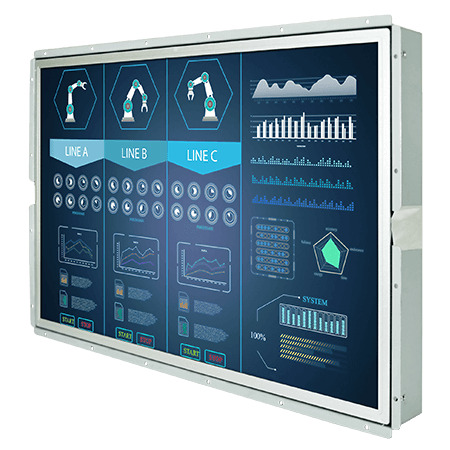
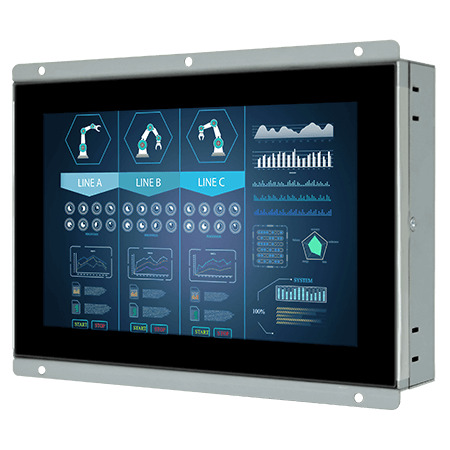
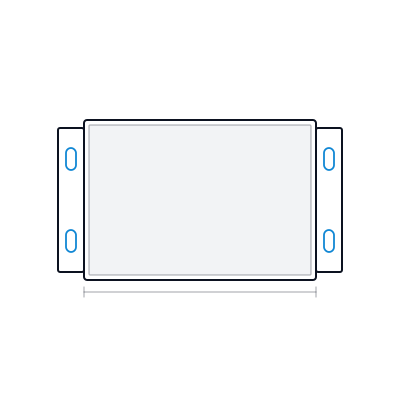
Four different approaches: a 15 inch (15") PCAP open frame monitor powered and driven over a single USB-C cable; a 15.6" 1300 nit open frame monitor with resistive or SAW touch options for bright sites; a 21.5" full HD PCAP open frame monitor with a 3000:1 contrast ratio; and a 15" open frame HMI panel PC with a 9th Gen Intel Core processor built in.
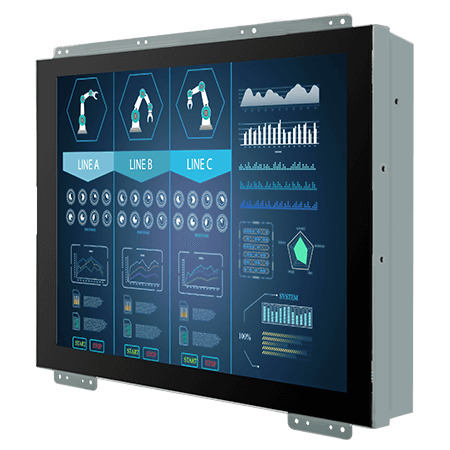
15″ Open Frame PCAP Touch Monitor with 1024 x 768 and Single-Cable USB-C
- Display
- 15″ (4:3, 1024×768, XGA)
- Brightness
- 300 nits
- Touch
- Multi Touch PCAP
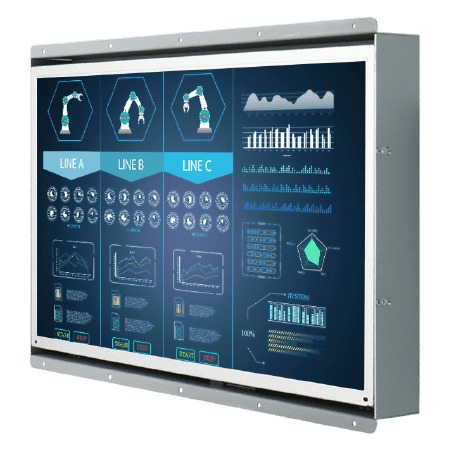
15.6″ High Brightness Open Frame Monitor with 1300 Nit LCD and Touch Options
- Display
- 15.6″ (8:5, 1366×768, WXGA)
- Brightness
- 1300 nits
- Touch
- Optional Resistive Touch
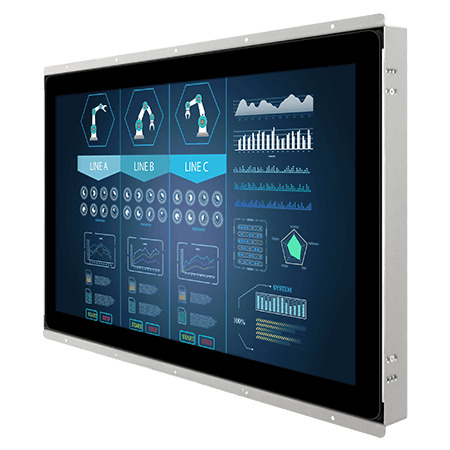
21.5″ PCAP Open Frame Touch Monitor with FHD 3000:1 Display
- Display
- 21.5″ (16:9, 1920×1080, FHD)
- Brightness
- 250 nits
- Touch
- Multi Touch PCAP
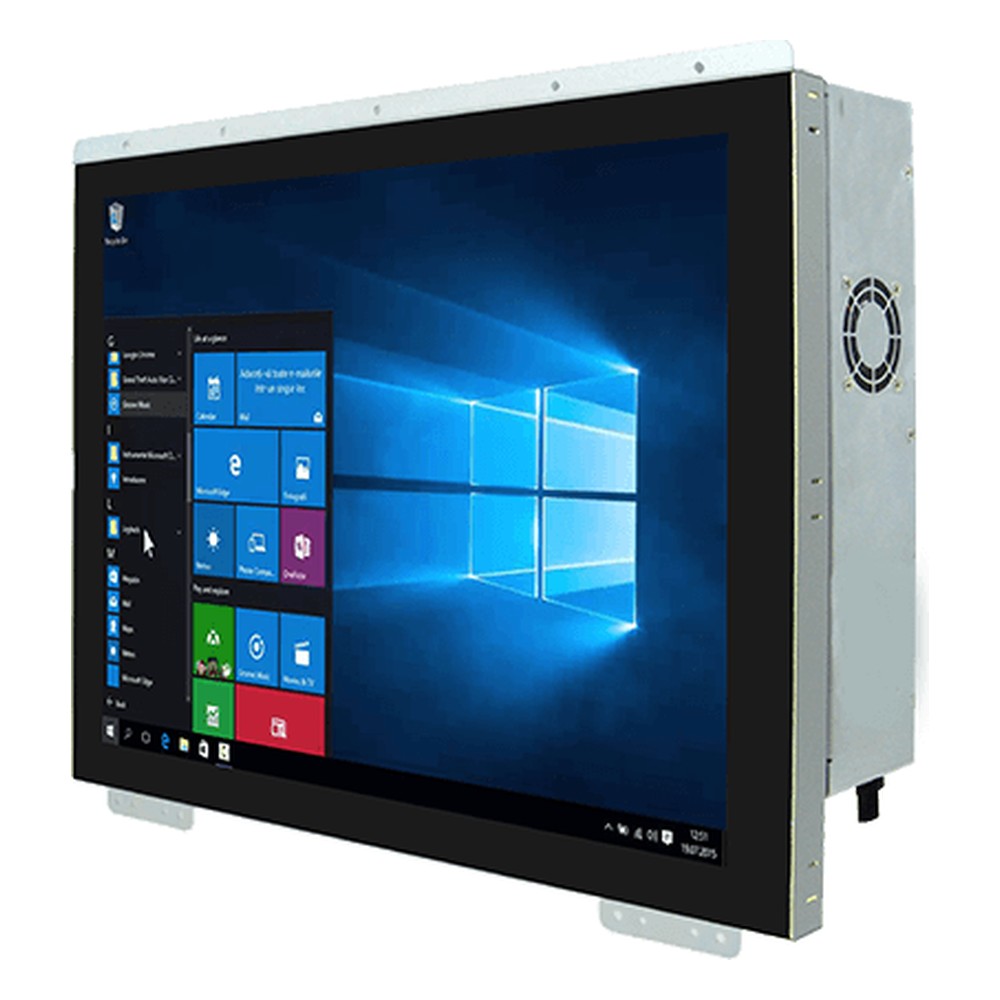
15″ Open Frame HMI Panel PC with 9th Gen Intel Core i3/i5/i7 and PCAP Touch
- Display
- 15″ (4:3, 1024×768, XGA)
- Brightness
- 300 nits
- Touch
- Multi Touch PCAP
Specifying an open frame display
Seven questions that settle the display, its mounting and the computer behind it.
-
01
Format
Open frame monitor, open frame panel PC or a kit, based on volume and how much engineering you want to own.
-
02
Size
Screen size in inches, aspect ratio and resolution for the viewing distance and the software layout.
-
03
Light
Indoor, near windows or in direct sun? Set the brightness, and ask about optical bonding or transflective panels.
-
04
Touch
None, PCAP, resistive or SAW, depending on gloves, gestures and the cover glass.
-
05
Video
Which outputs the computer has: HDMI, DisplayPort, VGA, USB-C, or LVDS and eDP for a bare panel.
-
06
Front
The bezel, gasket, IP rating and impact protection your enclosure must provide.
-
07
Heat and power
Internal temperature at full brightness, the supply voltage and cable routing.
Open frame displays: common questions
Quick answers
What is an open frame display?
A monitor without a housing. The panel, controller and optional touch screen sit in a bare metal chassis with mounting points, ready to build into a kiosk, machine or enclosure behind your own bezel.
What is the difference between open frame and panel mount monitors?
Who supplies the front. A panel mount monitor has its own sealed bezel and clamps into a cut-out from the front. An open frame monitor fits from behind, and your enclosure provides the bezel and the seal.
What is an embedded LCD display kit?
The display as separate parts. A bare LCD panel, a controller board, a backlight driver, cables and optional touch, which you assemble, cable and test inside your own product.
How do you mount an open frame monitor?
From inside the enclosure. Fix it behind an aperture with side brackets, rear studs or a VESA plate, with a gasket between the front glass and your bezel.
Are open frame monitors waterproof?
Only as part of a sealed build. The display has no housing, so front IP65 depends on the gasket and bezel in your enclosure; the rear relies on the enclosure for protection.
What touch technology is best for open frame displays?
Usually PCAP. PCAP gives multi-touch and a hard glass front. Resistive suits thick gloves and styluses, and SAW gives a clear image for indoor kiosks.
Can an open frame display be used outdoors?
Yes, with the right specification. Choose a high brightness or transflective panel, wide temperature components and an enclosure that seals and shades the screen.
Open frame display FAQs
-
What Is a Screen Bezel?
A screen bezel is the frame around the visible area of a monitor, TV, laptop or phone. It holds the LCD panel and cover glass in place and hides the drive electronics and backlight edges. On industrial displays the bezel also carries the seal, so a front IP65 or IP66 bezel keeps water and dust out of a panel cut-out.
-
What Are VESA Mount Sizes?
VESA mount sizes are standard screw-hole patterns on the back of a monitor, TV or panel PC, given in millimetres between hole centres, horizontal first. The common sizes are 75 × 75 and 100 × 100 for small and mid-size screens, 200 × 200 for larger ones, and 400 × 400 and up for big displays.
-
What Is LVDS?
LVDS (low-voltage differential signalling) is a way of sending high-speed digital data over pairs of wires using a small voltage difference of about 350 mV. It is defined in TIA/EIA-644. Its best-known use is the internal link between an embedded board and an LCD panel, although newer designs are moving to eDP.
-
What Is an LCD Display?
An LCD display is a flat screen that uses liquid crystals to control light from a backlight. A grid of thin-film transistors switches each pixel, colour filters split it into red, green and blue, and polarisers turn the crystal twist into light and dark. LCD stands for liquid crystal display.
-
What Is an Interactive Kiosk?
An interactive kiosk is a self-service terminal that combines a touchscreen, a computer and peripherals such as a card reader, printer or scanner in a secure enclosure. It lets people order, pay, check in, buy tickets or find information without staff, and is found in shops, restaurants, hospitals, hotels, stations and airports.
-
What Is a Transflective Display?
A transflective display is an LCD that both transmits light from its backlight and reflects ambient light from a partly reflective layer behind the liquid crystal. In dim light the backlight lights the image; in bright light, reflected daylight adds to it, so the screen gets easier to read as conditions get brighter while using less backlight power.
-
What Is an IK Rating?
An IK rating grades how well an enclosure resists mechanical impact, from IK00 (no protection) to IK10, which withstands a 20 joule impact. It is defined by IEC 62262 (EN 62262) and is used alongside the IP rating to specify displays, panel PCs and enclosures for public and industrial sites.
Need help choosing an open frame display?
Tell us about the product the screen goes into, where it will be installed and the computer that will drive it. We will recommend the size, brightness, touch and mounting, then configure and test the display before it ships.