
 UK
USB Versions Explained: Speeds, Connectors and Industrial USB
USB versions run from USB 1.0 at 12 Mbps in 1996 to USB4 Version 2.0 at 80 Gbps. Here is every version with its speed, name, connectors, cable length and power, followed by what changes when USB goes into industrial equipment: locking connectors, isolation and bandwidth.
USB versions are the generations of the Universal Serial Bus standard, from USB 1.0 in 1996 at 12 Mbps to USB4 Version 2.0 at up to 80 Gbps, and each one sets the data rate, the connectors a port can use and, with USB Power Delivery, how much power it can supply. USB is a standardised interface that lets a computer power and communicate with peripheral devices, and it has replaced PS/2, parallel and many serial ports with one compact connector.
USB has grown well beyond keyboards and printers. On the latest ports a single USB-C cable can carry data, video, power and touch input to an industrial display, and USB now competes with Ethernet for cameras and instruments close to the computer. Its popularity in embedded and industrial computing over the last decade follows from that progress and from the automation of many industries, where more connected devices need to talk over different interfaces, sometimes with the signal converted or isolated.
This guide sets out every USB version with its speed, name, connectors and cable length, untangles the USB 3.0, 3.1 and 3.2 naming, covers power delivery and connector types, then looks at USB in industrial use: locking connectors, isolation, bandwidth planning, hubs and serial converters. It should help you answer common questions when selecting, converting, isolating or expanding USB in an embedded system:
- Which USB version does the data bandwidth of my application need?
- Is power available for charging or powering my connected device?
- Will anything interfere with my signals, or should I isolate them?
- Can USB endure my application if the environment is harsh and prone to failures?
- Do I need to upgrade legacy devices, or can I convert them?
Key takeaways
- 01Speed and connector are separate
- The version sets the data rate; the connector, such as Type-A or USB-C, is just the plug shape, so a USB-C port can be anything from 480 Mbps to 80 Gbps.
- 02USB 3.0, 3.1 Gen 1 and 3.2 Gen 1 are the same
- All three are 5 Gbps; the USB-IF renamed the versions twice and now markets them by speed, such as USB 5Gbps.
- 03Faster means shorter cables
- USB 2.0 runs up to 5 m on a passive cable; 10 Gbps and faster links are usually limited to about 1 m.
- 04Power has grown a long way
- From 2.5 W on USB 2.0 to 100 W, and now 240 W, with USB Power Delivery on USB-C.
- 05Industrial USB needs extra care
- Locking connectors, isolation, ESD protection and controller bandwidth matter more than the version number on the box.
What are the different USB versions?
The table lists every USB version with the year its specification was published, its maximum data rate, the name the USB Implementers Forum (USB-IF) now uses on packaging, the connectors it appears on and a typical maximum passive cable length. Longer runs are possible with active cables, extenders and optical cables.
| Version | Year | Maximum data rate | Current marketing name | Connectors | Passive cable length |
|---|---|---|---|---|---|
| USB 1.0 | 1996 | 1.5 Mbps (Low Speed), 12 Mbps (Full Speed) | Low Speed and Full Speed USB | Type-A, Type-B | About 3 m at Low Speed, 5 m at Full Speed |
| USB 1.1 | 1998 | 12 Mbps | Full Speed USB | Type-A, Type-B | About 5 m |
| USB 2.0 | 2000 | 480 Mbps (High Speed) | Hi-Speed USB | Type-A, Type-B, Mini, Micro, USB-C | About 5 m |
| USB 3.0 / 3.1 Gen 1 / 3.2 Gen 1 | 2008 | 5 Gbps (SuperSpeed) | USB 5Gbps | Type-A, Type-B, Micro-B SuperSpeed, USB-C | About 2–3 m |
| USB 3.1 Gen 2 / 3.2 Gen 2 | 2013 | 10 Gbps (SuperSpeed+) | USB 10Gbps | Type-A, USB-C | About 1 m |
| USB 3.2 Gen 2×2 | 2017 | 20 Gbps | USB 20Gbps | USB-C only | About 1 m |
| USB4 (Version 1.0) | 2019 | 20 or 40 Gbps | USB 20Gbps, USB 40Gbps | USB-C only | About 0.8 m at 40 Gbps |
| USB4 Version 2.0 | 2022 | 80 Gbps, or 120 Gbps in one direction | USB 80Gbps | USB-C only | About 0.8–1 m |
Every newer version is backwards compatible with the older ones, providing the right connector or adapter is used: a USB 2.0 sensor works in a USB 3.2 port, at USB 2.0 speed. Our explainer on types of USB ports shows how to recognise each port on a computer.
How USB developed from 1996 to today
USB 1.0 and 1.1
The original USB 1.0 standard was introduced in 1996 with a maximum speed of 12 Mbps, designed to connect simple devices such as a mouse and keyboard to one computer. Adoption was slow at first, and it was USB 1.1 in 1998 that fixed the early problems and started USB’s universal adoption. Both used the Type-A and Type-B connectors.
USB 2.0 (Hi-Speed USB)
USB 2.0, released in April 2000, raised the transfer rate to 480 Mbps, 40 times faster than USB 1.1. It kept full compatibility with earlier devices and set the power that every port still supplies: 5 V at 500 mA, or 2.5 W. It also brought Mini-A, Mini-B, Micro-A and Micro-B connectors for smaller devices, and supported passive cables of up to 5 m. USB 2.0 remains the most common interface for touch controllers, keyboards, barcode scanners and serial adapters, because 480 Mbps is plenty for them.
USB 3.2 Gen 1 (USB 3.0): SuperSpeed USB 5Gbps
The demand for higher bandwidth and more ports, driven in part by IIoT devices, led to USB 3.0 in 2008, now called USB 3.2 Gen 1 or USB 5Gbps. It raised the rate to 5 Gbps and added a separate pair of wires for each direction, so data flows to and from the device at the same time, a full-duplex link that USB 2.0 lacked. Ports supply 900 mA. Type-A and Type-B connectors gained extra contacts, and a wider Micro-B SuperSpeed connector appeared. Passive cables are typically limited to about 2–3 m.
USB 3.2 Gen 2 (USB 3.1): SuperSpeed USB 10Gbps
Formerly USB 3.1, USB 3.2 Gen 2 doubled the bandwidth to 10 Gbps in 2013, and the USB-C connector followed in 2014. Twice the speed matters for vision applications transferring high-quality uncompressed video for inference. The USB Power Delivery specification, used with USB-C, allows up to 100 W from a port with a suitable cable.
USB 3.2 Gen 2×2: SuperSpeed USB 20Gbps
Released in 2017, USB 3.2 Gen 2×2 runs two 10 Gbps lanes over the USB-C connector for up to 20 Gbps. It works only on USB-C and has been less widely adopted than USB4, though some industrial boards carry it on USB-C ports.
USB4 and USB4 Version 2.0
USB4, launched in 2019, runs at up to 40 Gbps on USB-C only and borrows its design from Thunderbolt 3: it can tunnel USB, DisplayPort video and optionally PCI Express over one cable. USB4 Version 2.0, published in 2022, doubles the rate to 80 Gbps, or 120 Gbps in one direction for displays. The cost is cable length: passive 40 Gbps cables are usually limited to about 0.8 m. Thunderbolt 4 and Thunderbolt 5 are closely aligned with USB4, and our explainer on Thunderbolt vs USB-C sets out the differences.
In industrial computing, USB4 now appears on compact computers and small form factor boards, where it drives extra displays and fast external storage. For harsh environments, USB 2.0 and the 5 and 10 Gbps versions remain the norm, because they work over longer cables, on Type-A connectors that can be locked and with a wider choice of rugged peripherals. USB4 suits OEM equipment where the cable stays short and protected. Our guide to USB4 covers it in more detail.
USB 3.0 vs 3.1 vs 3.2: why the names changed
Much of the confusion around USB versions comes from the USB-IF renaming the 3.x generations twice, once in 2013 and again in 2017, and then moving to speed-based names on packaging in 2022. The same port can appear under three or four names on different datasheets.
| Data rate | Original name | After 2013 | After 2017 | Name on packaging today |
|---|---|---|---|---|
| 5 Gbps | USB 3.0 | USB 3.1 Gen 1 | USB 3.2 Gen 1 (Gen 1×1) | USB 5Gbps |
| 10 Gbps | – | USB 3.1 Gen 2 | USB 3.2 Gen 2 (Gen 2×1) | USB 10Gbps |
| 20 Gbps | – | – | USB 3.2 Gen 2×2 | USB 20Gbps |
| 40 Gbps | – | – | USB4 Gen 3×2 | USB 40Gbps |
| 80 Gbps | – | – | USB4 Version 2.0 (Gen 4) | USB 80Gbps |
When you read a datasheet, look for the data rate rather than the version number. A port described as USB 3.2 may be 5, 10 or 20 Gbps. Our explainer on USB 3.2 Gen 1 vs Gen 2 shows the difference in practice.
How much power can USB deliver?
A key advantage of USB is the ability to power connected devices without a separate supply. That reduces cabling, simplifies installation, helps portability and can cut hidden costs. How much power is available depends on the port and on what the two ends negotiate.
| Port or mode | Voltage | Maximum current | Power |
|---|---|---|---|
| USB 2.0 port | 5 V | 500 mA | 2.5 W |
| USB 3.x port | 5 V | 900 mA | 4.5 W |
| Battery Charging 1.2 (BC 1.2) | 5 V | 1.5 A | 7.5 W |
| USB-C current, 1.5 A | 5 V | 1.5 A | 7.5 W |
| USB-C current, 3 A | 5 V | 3 A | 15 W |
| USB Power Delivery, standard power range | Up to 20 V | 5 A with a 5 A cable | Up to 100 W |
| USB Power Delivery 3.1, extended power range | Up to 48 V | 5 A | Up to 240 W |
In practice, many computer ports supply far less than the maximum. A 4-port PCIe card or a compact computer may share one power budget between all its ports, so check the total as well as the per-port figure before relying on USB to power cameras or instruments. Cards such as the Axiomtek AX92321 series let each port be set to 900 mA or 1500 mA and switched off in software, which allows a hung camera to be reset remotely.
Power and display can share the cable too. A USB-C port with DisplayPort Alt Mode can drive a monitor and power it, which is how single-cable USB-C monitors work; our explainer on USB-C explains which features a USB-C port may or may not carry.
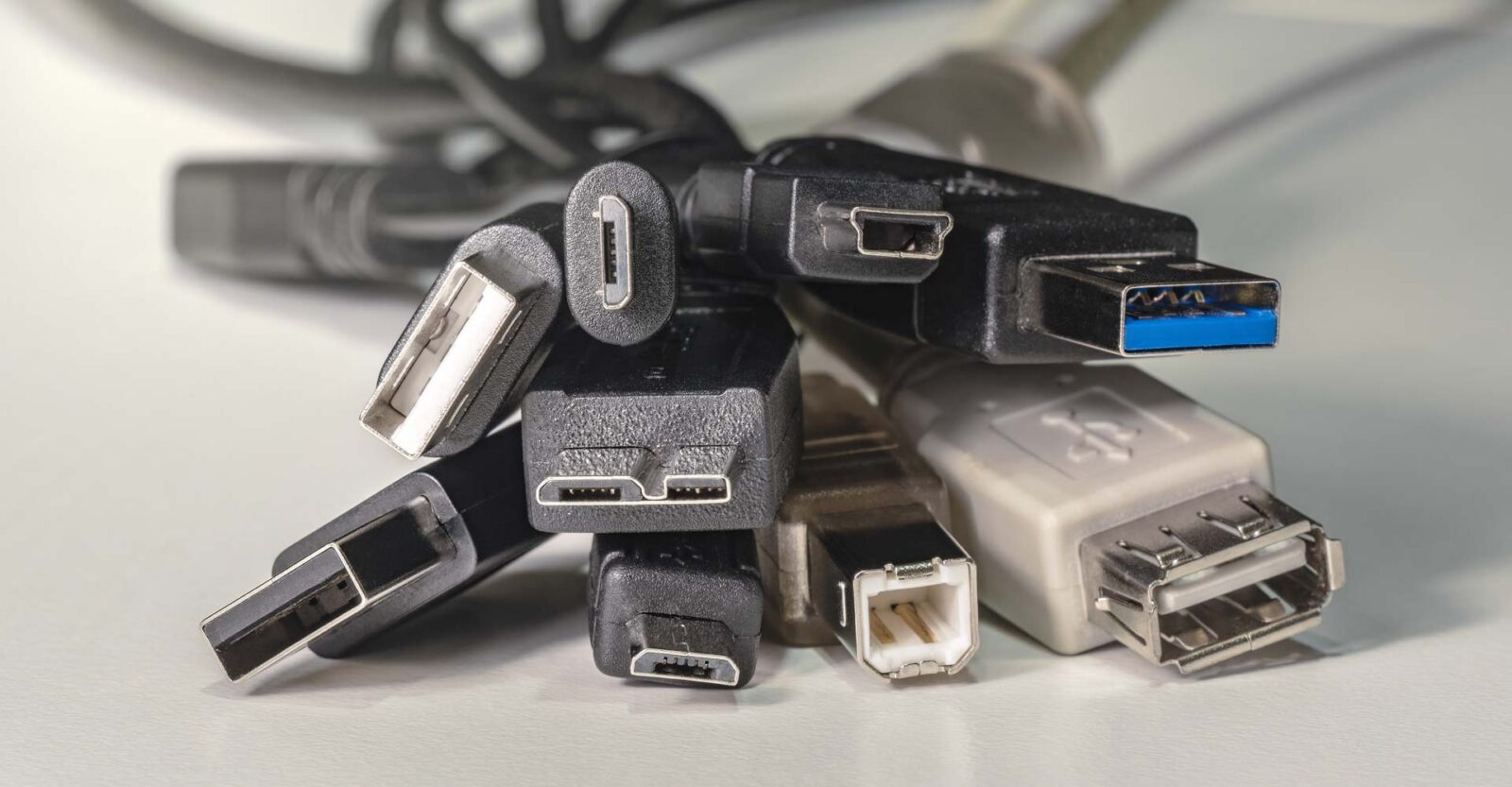
USB connector types, including locking and M12
USB connectors on embedded computers and I/O devices fall into two groups: standard and industrial. Standard connectors such as Type-A, Type-B and USB-C are small, light and easy to use, and where ingress protection and resistance to shock and vibration are not needed, they suit most applications.
| Connector | Used for | Industrial notes |
|---|---|---|
| Type-A | Host ports on computers and hubs | Screw-lock and latching versions available; the most common rugged USB port |
| Type-B | Printers, instruments and hub uplinks | Robust and still common on industrial equipment |
| Mini-B and Micro-B | Small devices and debug ports | Fragile under repeated use; Micro-B is common as a console port |
| Micro-B SuperSpeed | 5 Gbps external drives and cameras | Wide and easily strained; screw-lock versions exist on cameras |
| USB-C | Current computers, displays, docks and phones | Reversible; screw-lock USB-C exists, but retention varies |
| M12 | Sealed USB on rugged and vehicle computers | Screws in, resists vibration and seals against dust and water |
| Internal headers | Board-level USB to front panels or internal devices | USB 2.0 on 2.54 mm pitch pin headers; USB 3.x on a 19-pin header |
Locking, latching and circular M12 USB
Industrial USB connectors are designed for rugged applications where a loose plug means a lost device. Industrial and military users need USB connections that stay put, and the usual answers are a screw-lock, a latch or a circular connector.
Rugged PCs often use standard USB ports with screw-lock fixings for locking industrial cables; the Neousys POC-751VTC in-vehicle computer, for example, has four screw-lock USB 3.2 Gen 2 ports. Industrial hubs use latching Type-A and Type-B designs with a positive lock tab that sets them apart from standard ports. Some latching designs are aimed at the connector retention requirements of Class I, Division 2 hazardous locations, and some are quoted to hold against around 50 N (about 11 lb) of pull. Industrial connectors are also typically rated for more insertion cycles, which helps where devices are connected and disconnected often.
M12 connectors are another industry standard. Their threaded coupling secures the connection against shock and vibration, and their strong outer shell resists damage and the ingress of dust and water. Some vehicle computers carry an A-coded M12 USB port alongside M12 Ethernet.
Why isolate USB signals?
There are several reasons industrial and medical sites isolate USB. Industrial environments involve electrical noise and equipment powered from different supplies, and when a device and the computer sit at different earth potentials, current flows along the USB cable’s ground and can corrupt data or damage a port. A USB isolator breaks that path with galvanic isolation, passing the data across a barrier while keeping the two grounds apart.
| Problem | What happens without isolation | What isolation does |
|---|---|---|
| Ground loops | Current flows in the USB ground; devices drop out or data errors appear | Breaks the ground path between host and device |
| Surges and transients | A spike from field wiring reaches the computer’s USB controller | Keeps the spike on the device side of the barrier |
| Electrical noise | Interference from drives and motors couples into the signal | Reduces noise carried along the cable |
| Patient or operator safety | Leakage current can reach a person touching connected equipment | Provides a rated insulation barrier |
USB isolators are typically rated for isolation voltages of about 2.5 kV to 5 kV. Check the speed as well: many isolators run only at Full Speed (12 Mbps), which suits sensors and serial adapters, while Hi-Speed models cost more and isolating 5 Gbps USB is less common. Some industrial USB hubs build isolation into each port.
Medical equipment raises the bar. IEC 60601-1 defines the means of protection between a patient and mains-powered equipment, and USB connections to patient-connected devices are often specified with two means of patient protection, which is tested at 4 kV AC. Our guide to what medical grade means explains how this applies to computers.
ESD, cable length and interference
Exposed USB ports on kiosks and machines take static discharges from users. Many industrial computers quote ESD protection on their ports to IEC 61000-4-2, often ±8 kV contact and ±15 kV air discharge, which is worth checking for public-facing equipment. Keep within the passive cable lengths in the table above, or use active or optical extenders for longer runs. And be aware that USB 3.x signalling can raise the noise floor in the 2.4 GHz band, so keep shielded cables and Wi-Fi or Bluetooth antennas apart, a point covered by our explainer on electromagnetic interference.
Bandwidth planning: host controllers, hubs and expansion cards
The speed printed by a port is shared. All the ports on one USB host controller, and every device behind a hub, share that controller’s bandwidth, so four 5 Gbps cameras on one controller will not each get 5 Gbps. As more devices are connected, the data rate per device falls, which is why an industrial USB 3 hub has more headroom than a USB 2 hub, and why it pays to decide what goes on the hub before you buy it.
| Approach | How bandwidth is shared | Suits |
|---|---|---|
| Onboard ports | Usually one or two controllers for all ports | Keyboards, touch, scanners, a single camera |
| Industrial USB hub | All devices share the hub’s uplink | Many low-rate devices, such as sensors and serial adapters |
| PCIe card with one controller | All card ports share one controller | Several devices of modest bandwidth |
| PCIe card with a controller per port pair | Each controller has its own PCIe link | Multi-camera vision at full rate |
For multi-camera vision, cards with several independent controllers keep each camera on its own path. The Neousys PCIe-USB381F spreads eight USB 3.1 Gen 1 ports across four controllers and sustains up to 400 MB/s per port with four cameras running. When you have used every port on an IIoT gateway, an industrial USB hub is the simpler expansion; for cameras, a card or a USB frame grabber is usually the better route. Our guide to PCIe bandwidth shows how much a card’s slot can carry.
Advantages of USB in industrial applications
| Advantage | What it means in practice |
|---|---|
| Powers devices | Sensors, scanners, cameras and small displays run from the port, with fewer supplies and cables |
| Backwards compatible | Legacy devices keep working on new computers without unnecessary upgrades, lowering the cost of ownership |
| Hot-swappable | Sensors and peripherals can be replaced without shutting down a control system; avoid unplugging storage while it writes |
| Plug and play | Operating systems include drivers for keyboards, touch screens, storage and many cameras |
| Locking options | Screw-lock, latching and M12 connectors keep connections secure under vibration |
| Expandable | Hubs and PCIe cards add ports when a computer runs out |
The limits are distance, bandwidth sharing and, for some devices, driver support. Where a device sits more than a few metres from the computer, Ethernet is usually the better interface; our guide to Power over Ethernet covers powering cameras over longer runs.
Embedded and industrial USB applications
Industrial automation and test. Industrial PCs with high USB channel counts control equipment, automate systems and run test stations, and an industrial USB 3.0 hub adds channels where more are needed. Typically installed in cabinets close to the data source, these systems carry both power and data to cameras and sensors that feed predictions and commands in robotic automation and production lines.
Kiosks and vending machines. OEMs integrate board-level computers inside kiosks and vending machines, and USB is the natural interface for local peripherals such as card readers, printers, NFC and RFID readers and keypads. Industrial motherboards and single board computers with larger form factors carry more USB channels, with extra ports on internal headers.
Security and smart city surveillance. Surveillance computers use current USB versions to connect cameras and sensors, and for outdoor installations both the computer and any rugged USB hub must withstand the weather. Our industrial NVRs are built for that duty.
Medical. Medical OEMs value USB’s plug and play, hot swapping and broad peripheral support, but must factor in isolation where devices connect to patients.
In-vehicle, military and unmanned systems. Vehicles and unmanned systems bring shock, vibration and wide temperature swings, so latching or M12 USB connectors are a must for reliable connections. Typical devices include GPS receivers, vision cameras, handhelds and night vision equipment, with high-bandwidth ports for AI vision. Our in-vehicle computers carry screw-lock or M12 USB for this reason.
Connecting legacy serial devices with USB to serial converters
Serial ports are a simple and reliable way to connect one device to another, transmitting data a bit at a time at modest speeds. Industrial PCs with many serial ports are common in factories, connecting sensors and control equipment, and industrial automation has relied on serial communication for decades. A big advantage of serial is simple integration: most operating systems support serial devices natively. Our explainers on serial ports and RS-232 vs RS-485 cover the standards.
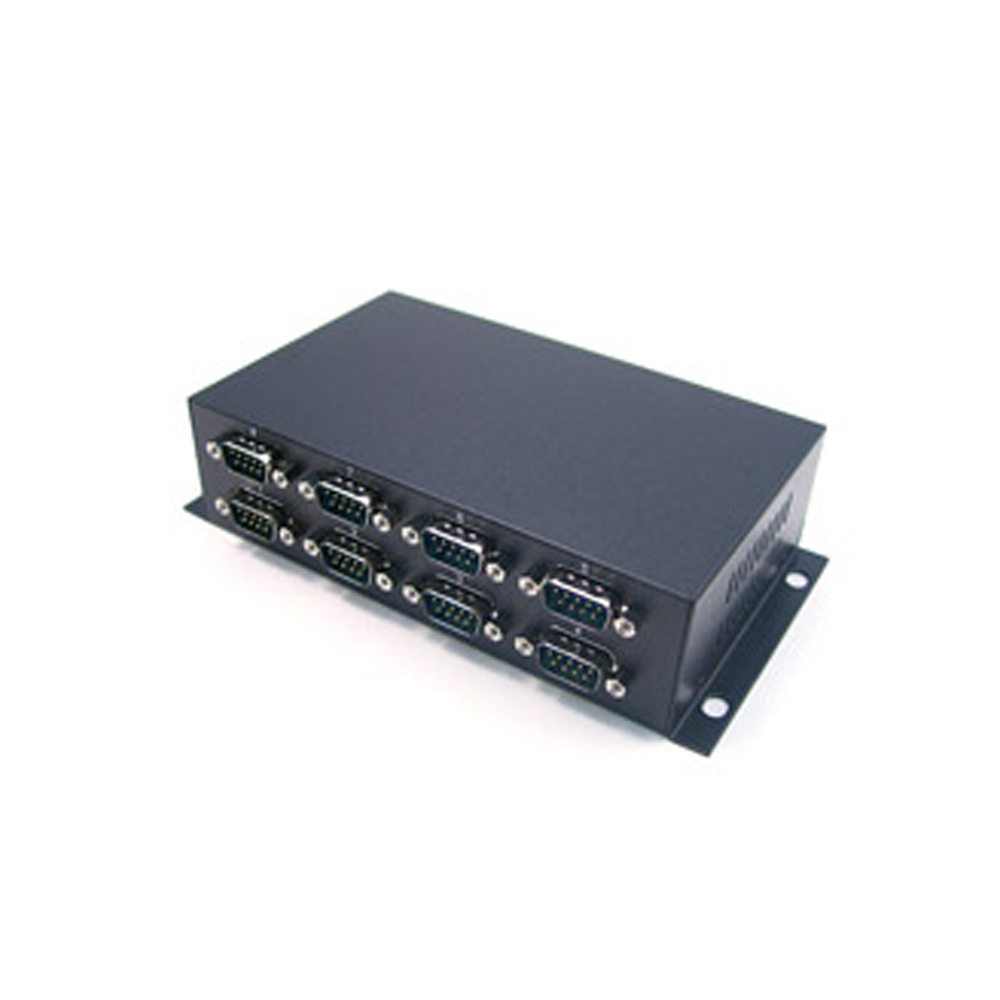
Serial devices can still be connected to computers without a serial port. A USB to serial converter adds a COM port when it is plugged into an industrial computer, which can save the cost of replacing legacy sensors and controllers when a site is modernised. For vehicle and machine networks, USB adapters exist for CAN too, such as the Sintrones EMUC-B202 with two isolated CAN ports. Where many ports are needed, serial I/O modules or a computer with native COM ports avoid a stack of adapters.
Industrial USB hubs, isolators, converters and expansion cards
The hardware that expands, protects and converts USB on industrial systems.
-
01

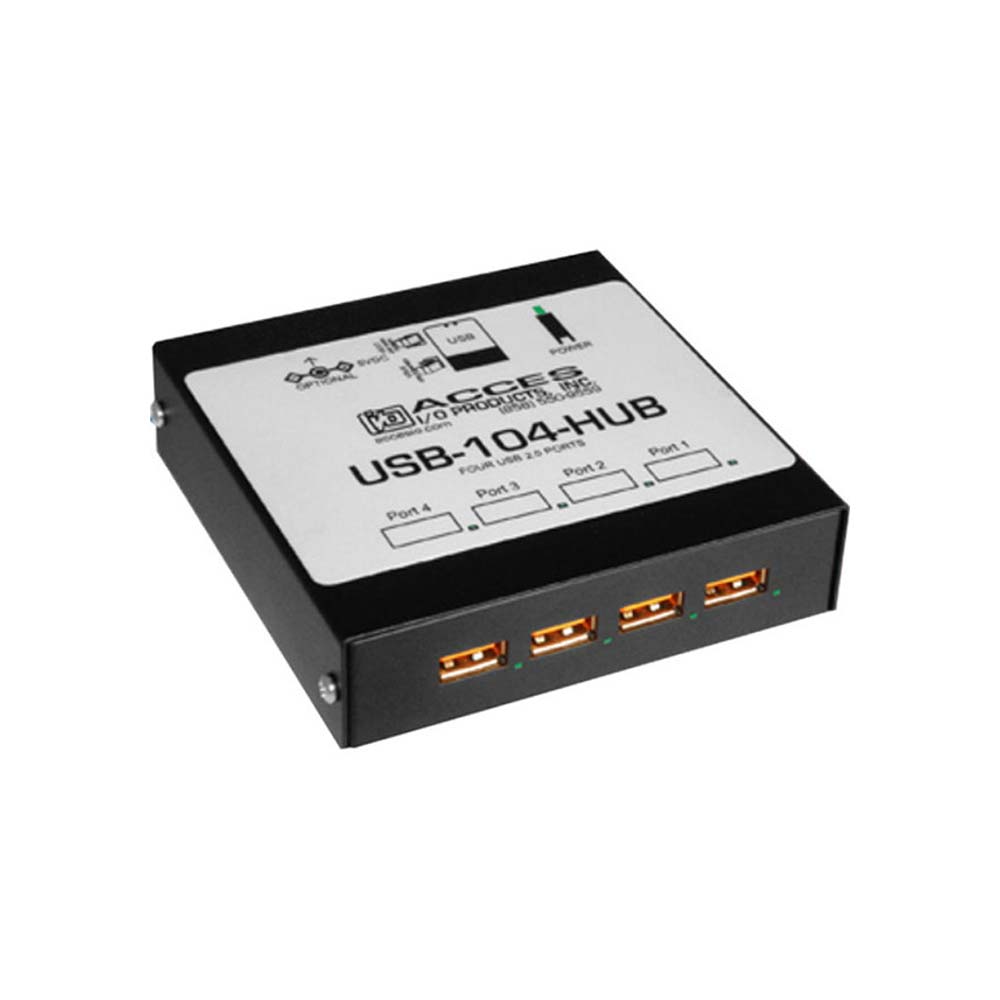
Industrial USB hubs
Add ports to a computer, with latching connectors, wide temperature ratings and optional isolation.
-
02
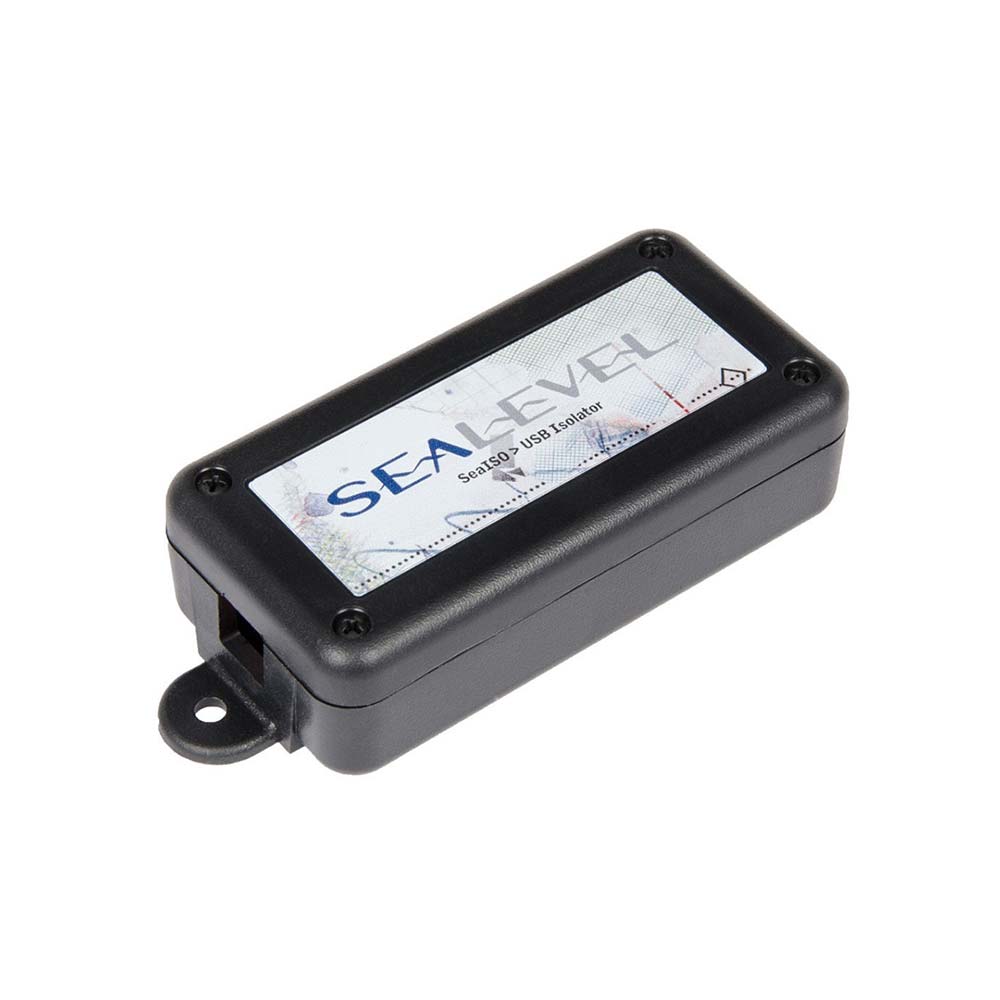
USB isolators
Break ground loops and stop surges reaching the computer’s USB controller.
-
03
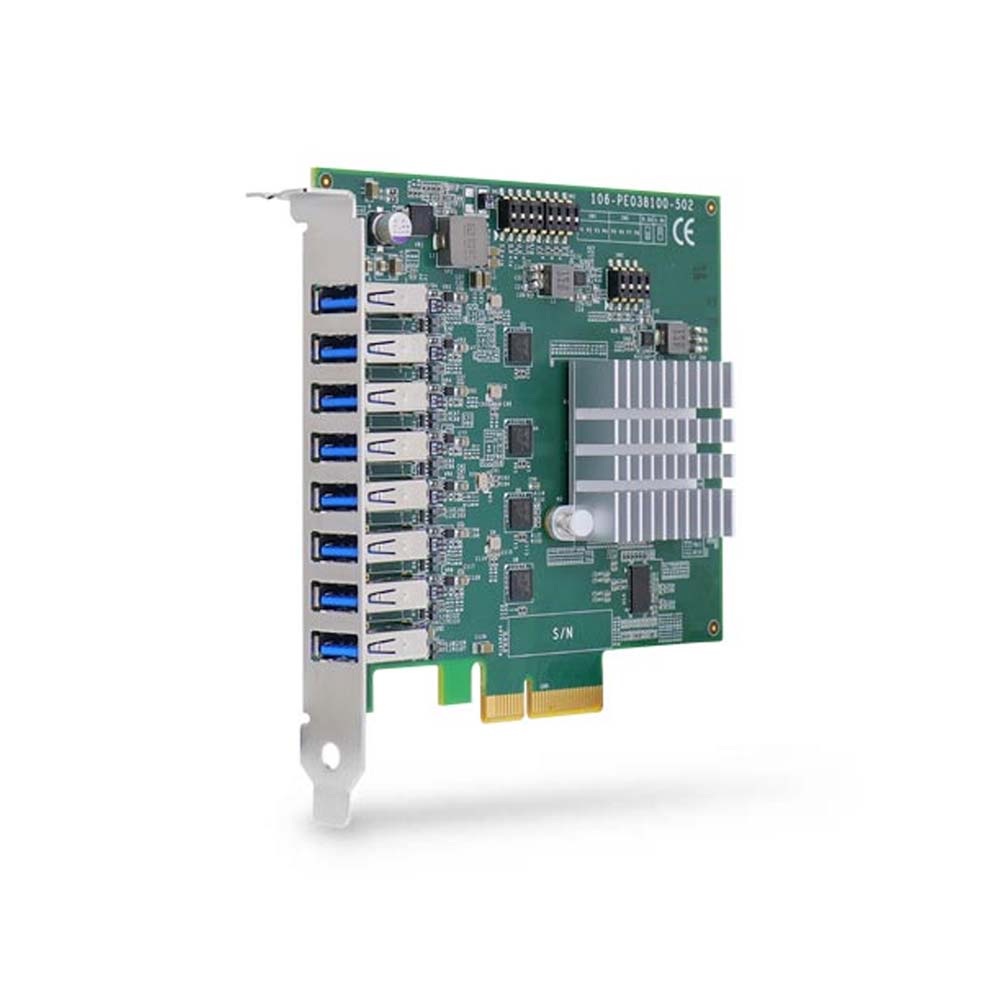
USB expansion cards
PCIe cards with several host controllers for multi-camera vision.
View range -
04
USB to serial converters
Add RS-232, RS-422 or RS-485 ports for legacy devices.
USB across our range
Where the USB choices in this guide matter most in the computers and cards we supply.

USB 3 vision cards
PCIe frame grabber cards with independent host controllers for USB3 cameras.
View range
USB video capture
UVC capture devices that bring HDMI and SDI video in over USB.
View range
Compact PCs with USB4
4x4 and NUC motherboards with USB4 for extra displays and fast storage.
View range
Rugged computers
Screw-lock and M12 USB on fanless rugged computers.
View range
Data acquisition and I/O
I/O modules for signals that should not ride on USB.
View range
Single-cable displays
USB-C monitors that take video, touch and power on one cable.
View rangeUSB hardware to start from
Four different approaches: an eight-port USB 3.0 PCIe card with four independent host controllers and switchable port power; an eight-port USB 3.1 Gen 1 frame grabber card sustaining up to 400 MB/s per port with four cameras; a fanless rugged Alder Lake computer with two four-port USB 3.0 modules for 16 USB ports in total; and a compact AMD Ryzen 7 computer with two USB4 Type-C ports.
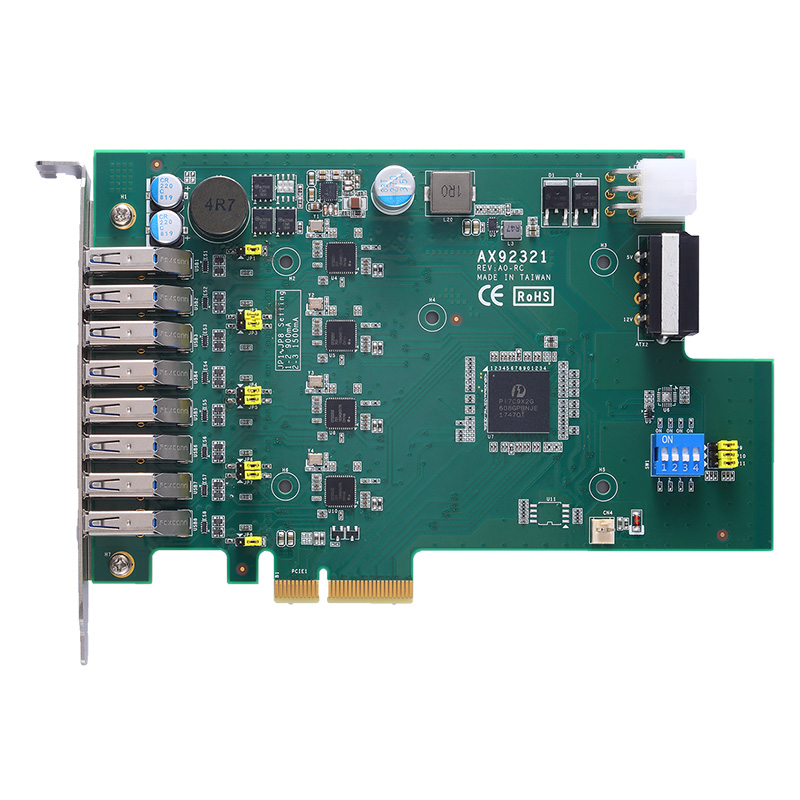
8 Port PCIe USB 3.0 Card with 4x Renesas μPD720202 Independent Host Controllers
- Temp
- 0 to +70 °C
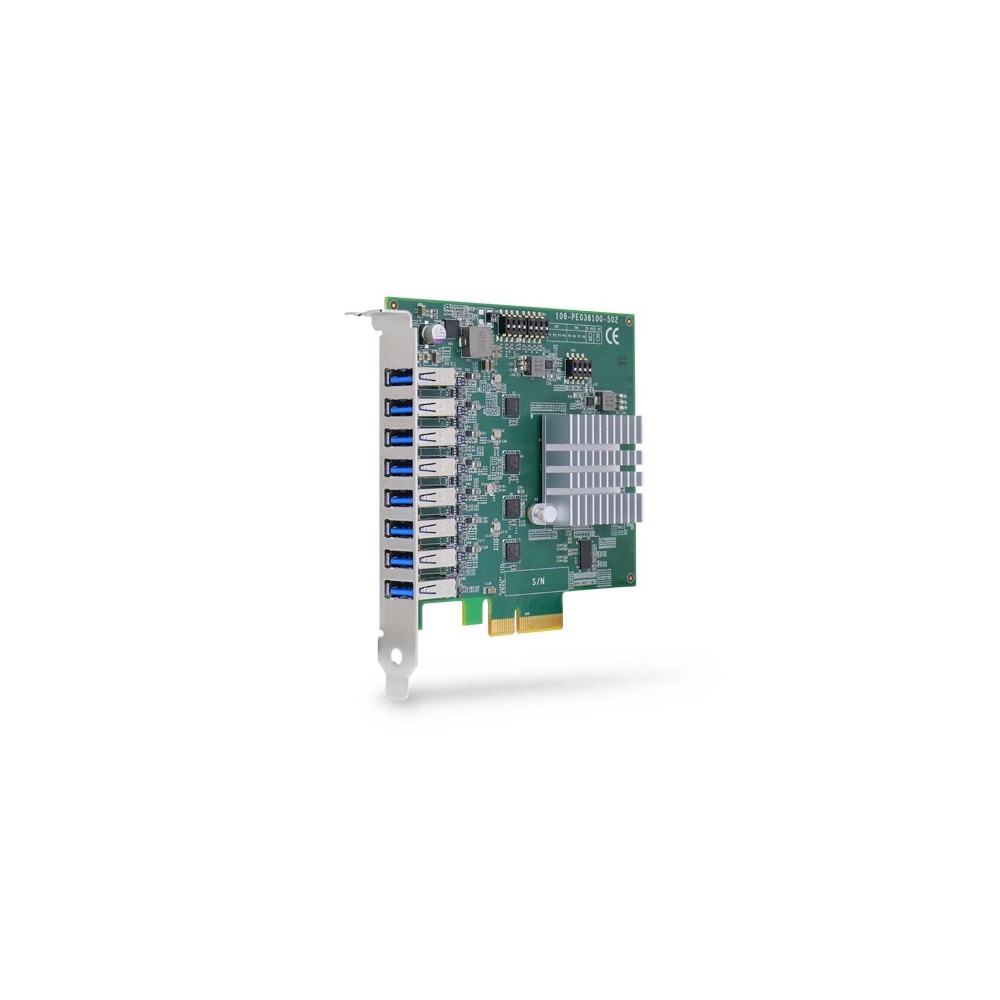
8-Port USB 3.1 Gen1 Frame Grabber Card with 4x USB Controllers
- Temp
- 0 to +60 °C
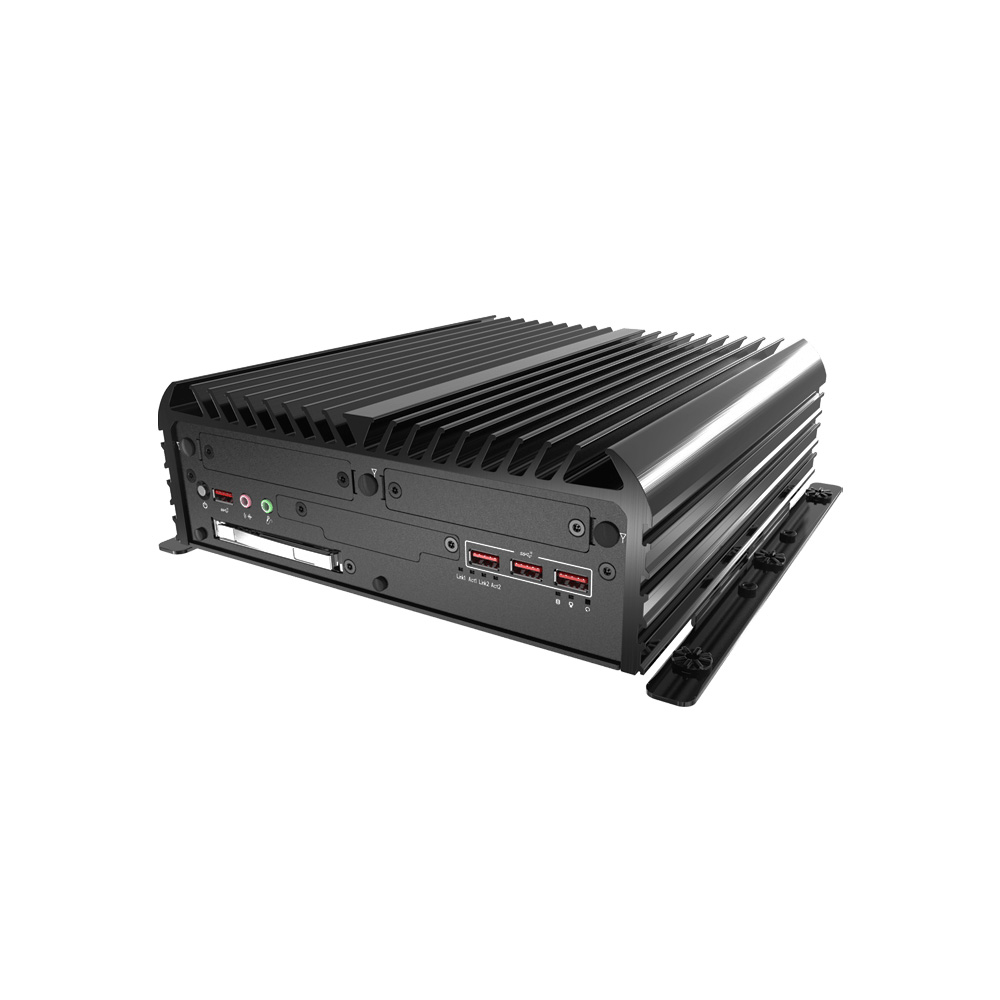
Intel Alder Lake Core Fanless Rugged Industrial Computer with 8x USB 3.0 EDGEBoost Module
- CPU
- Intel Core 13th Gen (Raptor Lake)
- Ethernet
- 2× GbE
- Temp
- −25 to +70 °C

AMD Ryzen 7 7735U 4×4 NUC PC with Dual USB4 and 2.5GbE
- CPU
- AMD Ryzen 7
- Ethernet
- 1× 2.5GbE, 1× GbE
- Temp
- 0 to +40 °C
Specifying USB for an industrial system
Seven questions that settle the version, the connectors and the protection.
-
01
Bandwidth
Add up what every device needs and check how many share each host controller.
-
02
Version
Pick the data rate, not the version name: 480 Mbps, 5, 10, 20, 40 or 80 Gbps.
-
03
Distance
Keep within passive cable limits, or plan active, optical or Ethernet links for longer runs.
-
04
Power
Per-port current, the total budget and whether any device needs USB Power Delivery.
-
05
Retention
Screw-lock, latching or M12 connectors wherever vibration or cable strain is expected.
-
06
Protection
Isolation for ground loops and field wiring, and ESD ratings for public-facing ports.
-
07
Legacy devices
Serial or CAN devices that need converters, and the drivers each one requires.
USB versions: common questions
Quick answers
What are the different USB versions?
Eight main versions since 1996. USB 1.0 and 1.1 at 12 Mbps, USB 2.0 at 480 Mbps, USB 3.2 Gen 1 at 5 Gbps, Gen 2 at 10 Gbps, Gen 2×2 at 20 Gbps, USB4 at 40 Gbps and USB4 Version 2.0 at 80 Gbps.
What is the difference between USB 3.0, 3.1 and 3.2?
Mostly the name. USB 3.0, USB 3.1 Gen 1 and USB 3.2 Gen 1 are all 5 Gbps. USB 3.1 Gen 2 and USB 3.2 Gen 2 are 10 Gbps, and only USB 3.2 Gen 2×2 reaches 20 Gbps.
Is USB-C the same as USB 3?
No. USB-C is a connector shape. A USB-C port can run anything from USB 2.0 at 480 Mbps to USB4 at 80 Gbps, depending on the computer behind it.
How fast is USB4?
Up to 40 Gbps, or 80 Gbps for Version 2.0. USB4 can also carry DisplayPort video and PCI Express over the same USB-C cable.
What is USB 3.2 Gen 2×2?
Two 10 Gbps lanes for 20 Gbps. It runs only over USB-C and is now sold as USB 20Gbps.
How much power can USB deliver?
From 2.5 W to 240 W. A USB 2.0 port gives 2.5 W and USB 3.x gives 4.5 W; USB-C can give 15 W, and USB Power Delivery up to 100 W or 240 W.
What is a USB isolator?
A barrier between host and device. It passes USB data across galvanic isolation, breaking ground loops and blocking surges, typically rated at a few kilovolts.
USB FAQs
-
What Are the Types of USB Ports?
The main USB port types are USB-A, the flat rectangular port on computers; USB-B, the square port on printers and instruments; Mini-B and Micro-B on older small devices; and USB-C, the reversible oval port now replacing them. The connector shape is separate from the speed, which runs from 480 Mb/s on USB 2.0 to 40 Gb/s on USB4.
-
USB 3.2 Gen 1 vs Gen 2: What Is the Difference?
USB 3.2 Gen 1 runs at 5 Gb/s and USB 3.2 Gen 2 at 10 Gb/s, so Gen 2 has twice the bandwidth. Gen 1 is the port first sold as USB 3.0, and Gen 2 was USB 3.1. Both work on USB-A and USB-C, and USB 3.2 Gen 2x2 doubles Gen 2 to 20 Gb/s on USB-C only.
-
What Is USB-C?
USB-C is a small, reversible 24-pin connector defined by the USB Implementers Forum. It is a connector, not a speed: the same port can carry USB 2.0, USB 3.2 or USB4 data, DisplayPort video, Thunderbolt and up to 240 W of USB Power Delivery, depending on what the device and cable support.
-
What Is USB4?
USB4 is the USB Implementers Forum’s data standard that runs at 20 or 40 Gb/s, or 80 Gb/s in USB4 Version 2.0, over a USB-C connector only. It is built on the Thunderbolt 3 protocol and can tunnel USB, DisplayPort video and PCIe traffic through one cable at the same time.
-
What Is a USB Hub?
A USB hub turns one USB port into several, sharing that port’s bandwidth between the devices plugged into it. A bus-powered hub draws all its power from the computer’s port, while a powered hub has its own supply, so each port can deliver full USB current to drives, cameras and other demanding devices.
-
Thunderbolt vs USB-C: What Is the Difference?
USB-C is a connector; Thunderbolt is an Intel interface that uses it. Thunderbolt 3, 4 and 5 run over USB-C ports and cables, so every Thunderbolt port is also a USB-C port. A plain USB-C port may run only USB 2.0 or USB 3.2, while Thunderbolt guarantees 40 Gb/s or more, PCIe and display support.
-
What Is Galvanic Isolation?
Galvanic isolation separates two circuits so that no current can flow directly between them, while power or data still passes across the gap by light, a magnetic field or an electric field. It breaks ground loops, blocks damaging voltages and noise, and protects people and equipment wherever circuits at different potentials have to connect.
Need help expanding, isolating or converting USB signals?
Tell us which devices you need to connect, how far they are from the computer and the environment they work in. We will recommend the ports, cards and protection, then configure and test the computer before it ships.