
 UK
UK Installing a Control Cabinet PC for Reliable Performance
A control cabinet PC sits beside the PLCs, drives and power supplies it works with, in warm, still air on a shared 24 V supply. This guide covers where to place it, the cabinet temperature it has to handle, a dedicated power supply, earthing and EMC, cable routing, commissioning and thermal monitoring.
A control cabinet PC is an industrial computer installed inside an electrical control cabinet beside the PLCs, power supplies, drives and terminals it works with, usually fanless, DIN rail or wall mounted and powered from the cabinet’s 24 V DC supply. Installed well, it runs for years without attention; installed badly, it overheats, resets on electrical noise or loses data when the supply dips.
Every edge computing application has its own requirements, and a lot of effort goes into choosing and configuring the right computer for a project. This guide covers what happens next: installing an industrial fanless PC in a control cabinet. It covers where to put the computer, the cabinet temperature it has to cope with, clearances and orientation, power and protection, earthing and EMC, cable routing, commissioning and thermal monitoring.
Key takeaways
- 01Rate it to the cabinet air
- A closed cabinet often runs 10 to 20 °C warmer than the room, and the top of the cabinet is the hottest place.
- 02Heat rises, so plan the layout
- Keep drives, transformers and power supplies beside or above the computer, not underneath it.
- 03Give it its own supply
- A dedicated DC supply, or a well-protected input, keeps inductive loads and surges away from the computer.
- 04Earth it and segregate cables
- A short earth to the earth bar and signal cables kept apart from power wiring prevent noise problems.
- 05Check it running, then monitor it
- Measure temperatures under real load at commissioning and keep watching them remotely.
What makes a computer suitable for a control cabinet?
A cabinet PC lives in warm, still air, shares its power with motors and solenoids, and is rarely looked at once the door is closed. The features that matter follow from that.
| Feature | Why it matters in a cabinet | What to look for |
|---|---|---|
| Fanless cooling | No fan to clog with dust or fail, and no filter to clean | Rated operating range at the processor power you will use |
| 24 V DC input | Runs from the cabinet supply without an AC adapter | Wide input such as 9–48 V DC, with over-voltage and reverse-polarity protection |
| DIN rail or wall mounting | Fits the backplate and rail layout | DIN clip as standard, or a flat-top for conduction to the backplate |
| Front-facing I/O | Cables run straight to the wiring duct | Screw-lock USB and LAN, terminal-block power and isolated DIO |
| Industrial interfaces | Talks directly to PLCs, drives and sensors | RS-232/422/485, isolated digital I/O, multiple Ethernet ports |
| Certification | Panel builders may need evidence for the cabinet as a whole | UL 62368-1 or IEC 62368-1 where the panel is built to UL 508A |
For panels built to UL standards, our guide to UL 508A for control panels explains what the computer inside needs. The wider advantages of passive cooling are covered in our guide to the benefits of fanless computers; here the focus is the installation.
How hot can a control cabinet get?
When installing a fanless computer inside an enclosure, such as an unventilated control cabinet or the boot of a vehicle, the air inside can quickly exceed the surrounding temperature. Every device in the cabinet adds heat, and with the door closed the air has nowhere to go. In practice, a closed cabinet often runs 10 to 20 °C above the room, and more at the top, where warm air collects.
Switchgear and controlgear assemblies built to IEC 61439 are designed around an outside air temperature that does not exceed 40 °C and averages no more than 35 °C over 24 hours, so a cabinet in a hot plant room can see 55 to 60 °C inside on a summer afternoon. That is why the computer’s rating needs checking against the cabinet air, not the room.
| Room temperature | Typical rise in a closed cabinet | Air around the computer | What that means |
|---|---|---|---|
| 20 °C (heated building) | 10–15 K | 30–35 °C | Comfortable for most fanless PCs at full power |
| 30 °C (warm factory) | 10–20 K | 40–50 °C | Check the rating at the processor power you will run |
| 40 °C (hot plant room or summer) | 15–20 K | 55–60 °C | Near the limit of many fanless PCs; lower power or cool the cabinet |
These are typical figures; the real rise depends on the heat load, the cabinet’s surface area and whether it is ventilated. Our guide to electrical enclosure cooling shows how to calculate it and when a filter fan, heat exchanger or air conditioner is needed.
Where to place the computer in the cabinet
Ensuring enough clearance around a fanless computer is essential, because the air around it carries the heat away. Heat rises, so the position on the backplate matters as much as the gap around the case.
- Nothing hot underneath. Avoid placing heat-producing equipment such as drives, power supplies and transformers directly below the computer; it pre-heats the air before it reaches the fins.
- Clear space above. Make sure there is airflow above the computer for natural convection over the fins, and keep wiring duct from closing off the top and bottom of the case.
- Nothing stacked on top. Stacking other equipment on the computer, whether it produces heat or not, blocks airflow and can lead to throttling or long-term damage.
- Fins facing the right way. Mount the computer with the heatsink fins vertical, or facing up where the maker shows that orientation. Mounting with the fins facing down, for example under the cabinet roof, reduces cooling badly and needs careful monitoring.
- Away from drive cables. Keep the computer and its signal cables away from variable speed drives and their motor cables, which are the main source of electrical noise in a cabinet.
The manufacturer’s manual gives the minimum clearances for each model, and our guide to how a fanless PC works explains why orientation matters.
Two ways to cool a cabinet PC
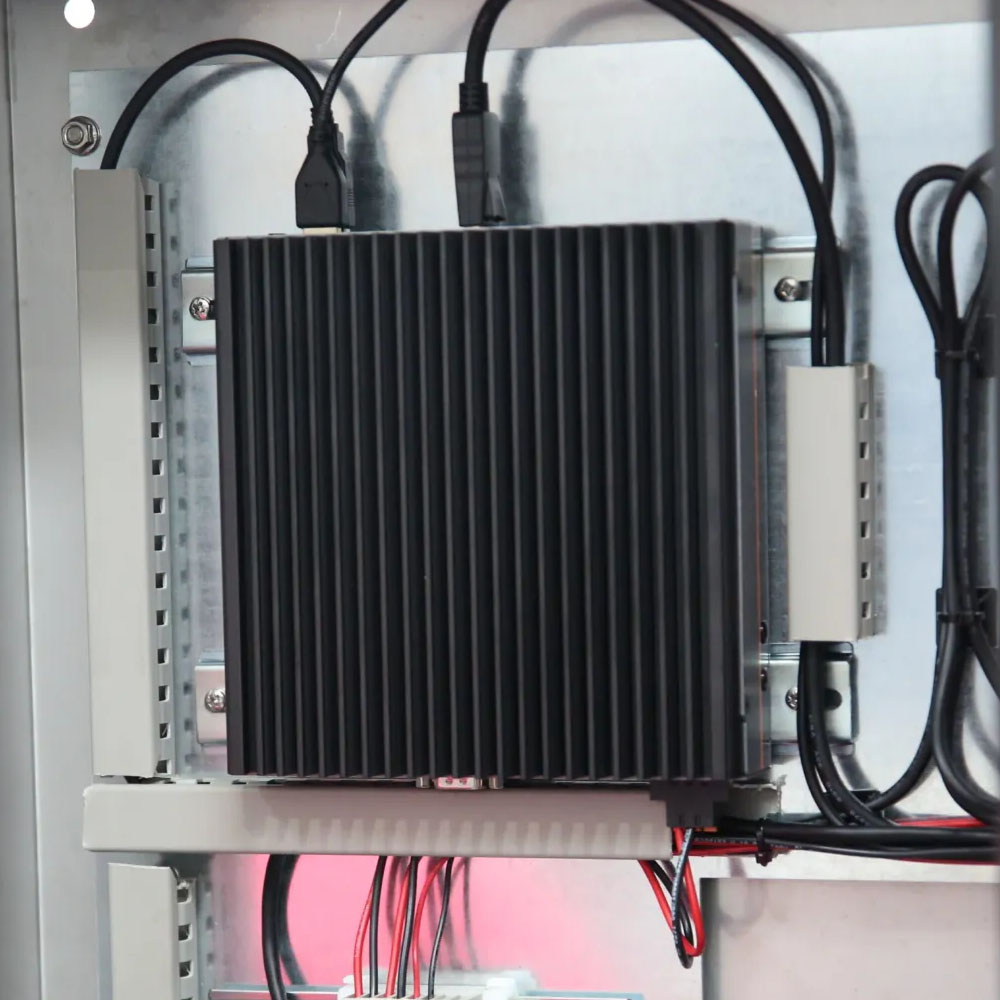
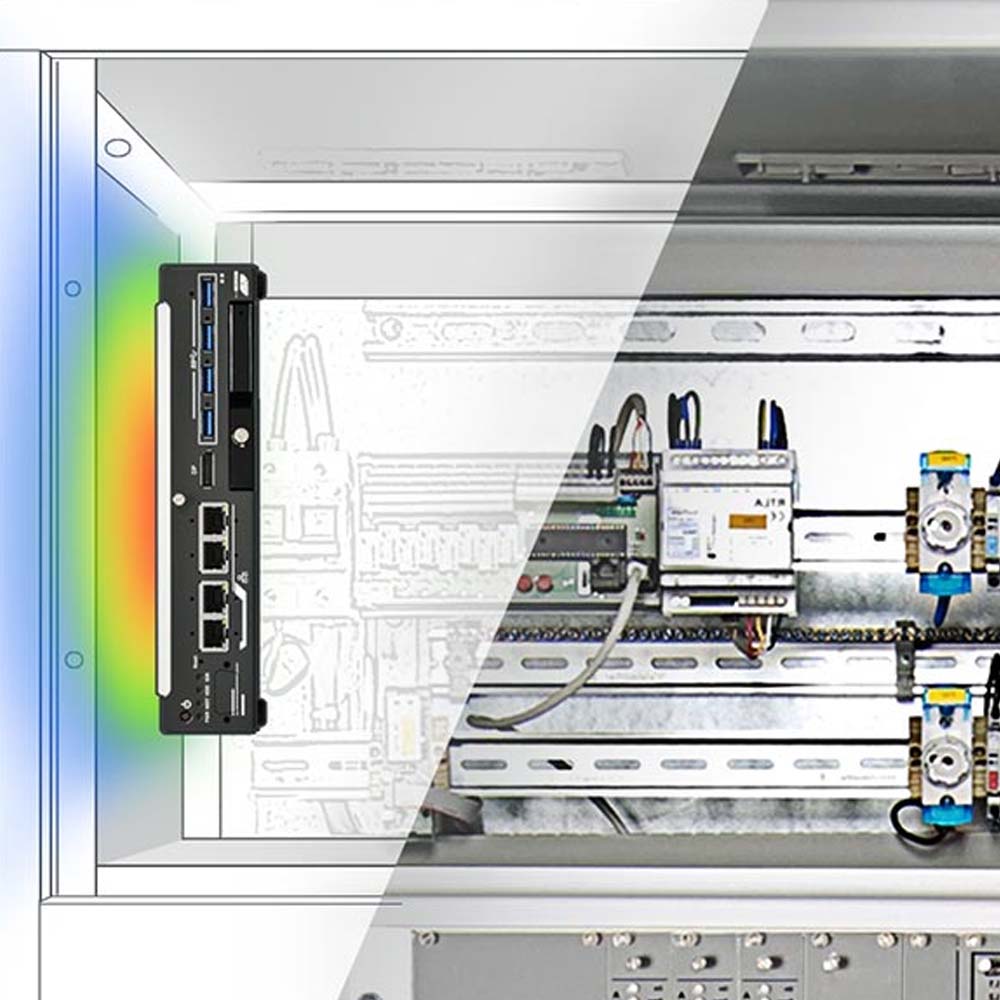
A fanless PC in a cabinet sheds its heat into the cabinet air through its fins, or into the cabinet wall through a flat heat spreader.
-
01

Finned heatsink into the cabinet air
Passive cooling with heatsinks is the basis of fanless PC design. The aluminium chassis and its fins add surface area, so heat from the processor rises off the case by natural convection. It needs free air above and below the fins.
-
02
Heat spreader into the cabinet wall
A flat heat spreader conducts heat from the processor straight into the cabinet wall or backplate, which carries it to the outside air. It suits compact or sealed cabinets where there is little air movement.
DIN rail, wall or backplate: choosing the mounting
The mounting decides how the computer sheds heat as well as where it sits.
| Mounting | How it cools | Best for | Example |
|---|---|---|---|
| DIN rail | Convection into the cabinet air | Compact computers up to about a kilogram or two | Neousys POC-915, DIN rail as standard |
| Wall bracket on the backplate | Convection into the cabinet air | Heavier box PCs, vibrating machines | Neousys Nuvo-9002E-UL, wall mount as standard, DIN rail optional |
| Flat-top against a metal backplate or wall | Conduction into the panel | Sealed or crowded cabinets with little airflow | Neousys POC-712-FT, rated with an aluminium panel to simulate a cabinet |
Our guide to industrial computer mounting compares every mounting method, and the step-by-step guide on mounting DIN rail computers covers rails, clips and end stops.
Power: give the computer its own supply
When powering a fanless industrial computer, use a dedicated power supply wherever possible. That keeps the computer’s input independent of other equipment and protects it against interference. Sharing a DC supply with inductive loads, such as solenoids, relays or motors, can expose the computer to reverse voltage spikes when those loads switch off, which can damage or destroy it.
A dedicated supply gives a stable, isolated source and reduces the risk of voltage dips and electrical noise reaching sensitive electronics. If the supply has to be shared, check that the computer has adequate DC input protection and that the loads on the same supply are suppressed. Many fanless industrial PCs offer over-voltage, over-current and ESD protection, and a wide DC input, typically 9 to 48 V DC, rides through dips and surges better than a fixed 12 V or 24 V input.
| Risk on a shared 24 V supply | What happens | How to prevent it |
|---|---|---|
| Inductive kickback from relays, solenoids and contactors | Reverse voltage spikes on the supply | Dedicated supply; suppression diodes or RC snubbers on the coils |
| Motor start or drive inrush | Supply dips that reset the computer | Separate supply or a UPS; a wide-input computer |
| Surges from long cables and switching | Damage to the input stage | Surge protection; computers tested to IEC 61000-4-5 |
| Reverse polarity during wiring | Damage at first power-up | Reverse-polarity protection; check before switching on |
| Power cut during a write | Corrupted files or operating system | UPS or supercapacitor module and a controlled shutdown |
Feed the computer from its own breaker or fuse so it can be isolated without shutting down the cabinet. To ride through short outages and shut down cleanly, a DIN rail UPS or supercapacitor module sits beside the computer; our guide to supercapacitor vs battery UPS compares the two, and the supercapacitor FAQ explains the parts. Industrial SSDs with power loss protection add a second layer.
Earthing, EMC and cable routing
Most cabinet PC faults that look like software problems are electrical: random resets, dropped serial links, Ethernet errors. Good earthing and cable segregation prevent them.
| Practice | Why it matters |
|---|---|
| Earth the computer to the cabinet earth bar with a short, heavy conductor | Gives noise and static a low-impedance path that bypasses the electronics |
| Mount on a bare, conductive backplate where the maker requires it | Bonds the chassis to the cabinet earth across its whole base |
| Run signal and power cables in separate ducts, crossing at right angles | Reduces noise coupled from motor and mains cables into data lines |
| Use shielded cables for long serial runs and bond the shield as the device maker specifies | Protects RS-485 and analogue signals from interference |
| Choose isolated serial and digital I/O for field wiring | Breaks ground loops between the computer and distant equipment |
| Use screw-lock connectors and strain relief | Stops vibration and cable weight working connectors loose |
Industrial computers are tested for immunity to IEC 61000-6-2 and for emissions to IEC 61000-6-4 or the equivalent product standard, but the installation still decides how much noise reaches them. Our FAQs on electromagnetic interference and galvanic isolation explain the causes and cures, and our guide to DIO vs GPIO covers isolated digital I/O. Keep cables tidy with ties and duct so nothing pulls on the connectors, and label both ends for the next engineer.
How to install a PC in a control cabinet
Five steps take a cabinet PC from the bench to running service.
-
Plan
Layout and heatChoose a position with clear air above and below, away from drives and power supplies, and check the computer’s rating against the cabinet air temperature.
-
Mount
Rail, wall or panelFix the DIN rail, wall bracket or flat-top to the backplate as the manual shows, with the fins vertical and end stops on the rail.
-
Power
Supply and earthWire the DC supply through its own breaker or fuse, check polarity and voltage, and connect the earth terminal to the earth bar.
-
Connect
Data and I/OConnect Ethernet, serial and I/O cables with strain relief, routed in the signal duct away from power and motor cables.
-
Commission
Test and monitorPower on, check status and communications, then run the real workload with the door closed and record the temperatures.
Commissioning and thermal monitoring
Thermal monitoring matters most when a fanless PC sits in a confined or sealed enclosure. Tracking temperatures inside and around the computer catches overheating before the processor throttles or the system fails.
Once the computer is installed and running, the chassis should be warm to the touch. That is a sign the passive cooling is working, carrying heat from the processor to the case. An infrared thermometer gives a quick reading of the chassis and the air above it; a reading far above what the maker expects can point to a problem that will make the processor throttle.
| Check | How | When |
|---|---|---|
| CPU and board temperatures | BIOS hardware monitor, vendor utilities or OS tools such as lm-sensors on Linux | At commissioning, under the real workload, door closed |
| Throttling | Clock speed under sustained load against the expected speed | At commissioning and after any software change |
| Cabinet air temperature | A sensor near the computer’s air inlet, ideally logged | Continuously, with an alarm threshold |
| Chassis surface | Infrared thermometer on the fins or heat spreader | At commissioning and on site visits |
| Remote health | Out-of-band management, watchdog timer and alerts | Continuously |
Modern processors report temperatures in real time, so software can lower the workload or raise an alarm before limits are reached. Our guide to thermal throttling shows how to check for it, a watchdog timer restarts a computer that stops responding, and Intel AMT and out-of-band management lets you check and restart cabinet PCs without a site visit.
Where the processor needs more cooling than passive fins can give, fanless computers with an external fan module offer a hybrid: the electronics stay sealed while the fan adds airflow over the heatsink. That suits high-performance edge computing in warm cabinets, at the cost of a part that needs occasional checks.
Control cabinet PCs from our range
These computers are built for cabinet installation. We configure, image and test each one, with power limits and BIOS settings to suit the cabinet.
| Example from our range | Mounting | Key facts |
|---|---|---|
| Neousys POC-915 | DIN rail as standard | AMD Ryzen PRO 8640U, 16 TOPS NPU; four PoE+; 8–35 V DC; −25 to 70 °C at 15 W; UL 62368-1 configuration |
| Neousys Nuvo-9002E-UL | Wall as standard, DIN rail optional | Intel 14th/13th/12th Gen Core; one PCIe slot; 24 V DC terminal block; certified to UL 62368-1 and IEC 62368-1 |
| Neousys POC-712-FT | Wall, flattop heatsink | Intel Atom x7425E, 12 W; isolated DIO; 8–35 V DC; −25 to 60 °C on an aluminium panel |
| SolidRun BEDROCK R8000 | DIN rail or wall | Up to AMD Ryzen 9 PRO 8945HS, 16 TOPS NPU on the eight-core options; Hailo options; 12–24 V DC, 12–60 V with a power module |
In practice, the cold-chain robot fleet case study runs on a DIN rail BEDROCK R8000, and our IoT gateways monitoring manufacturing machines show cabinet computers collecting machine data.
Cabinet PCs to start from
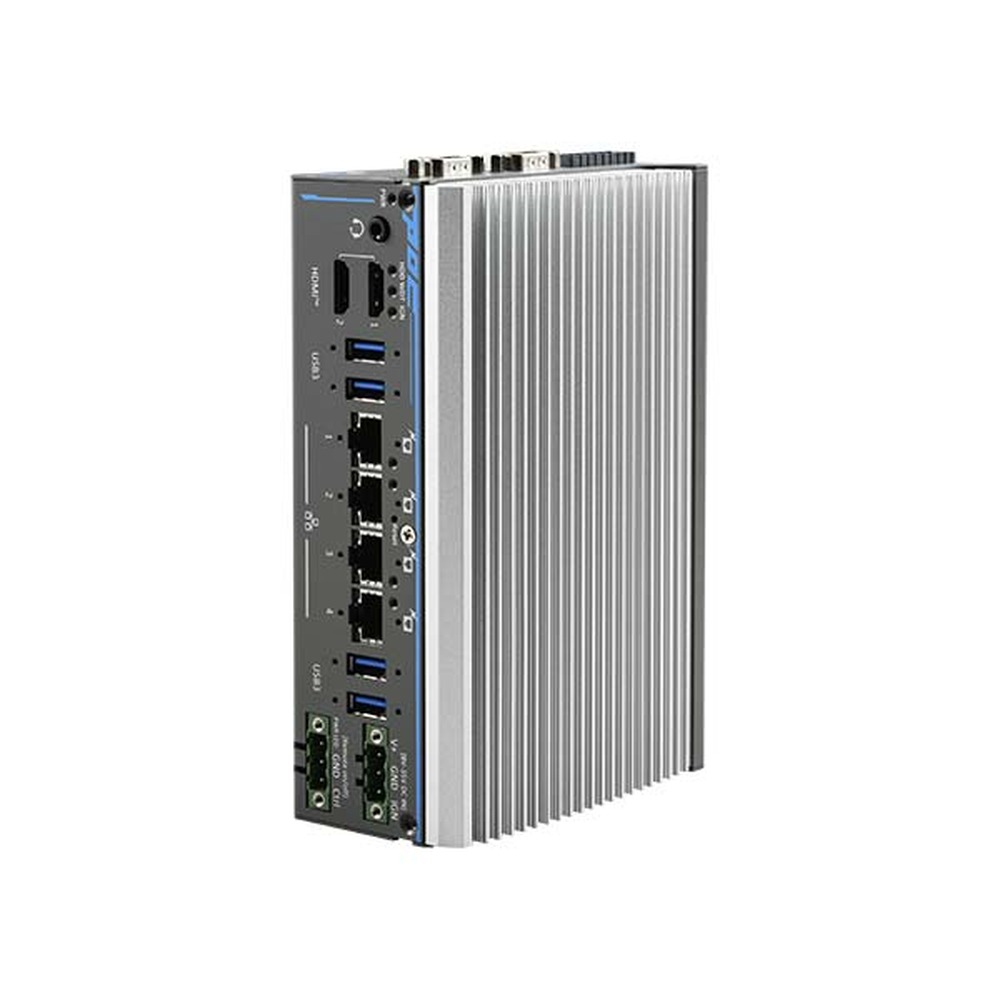
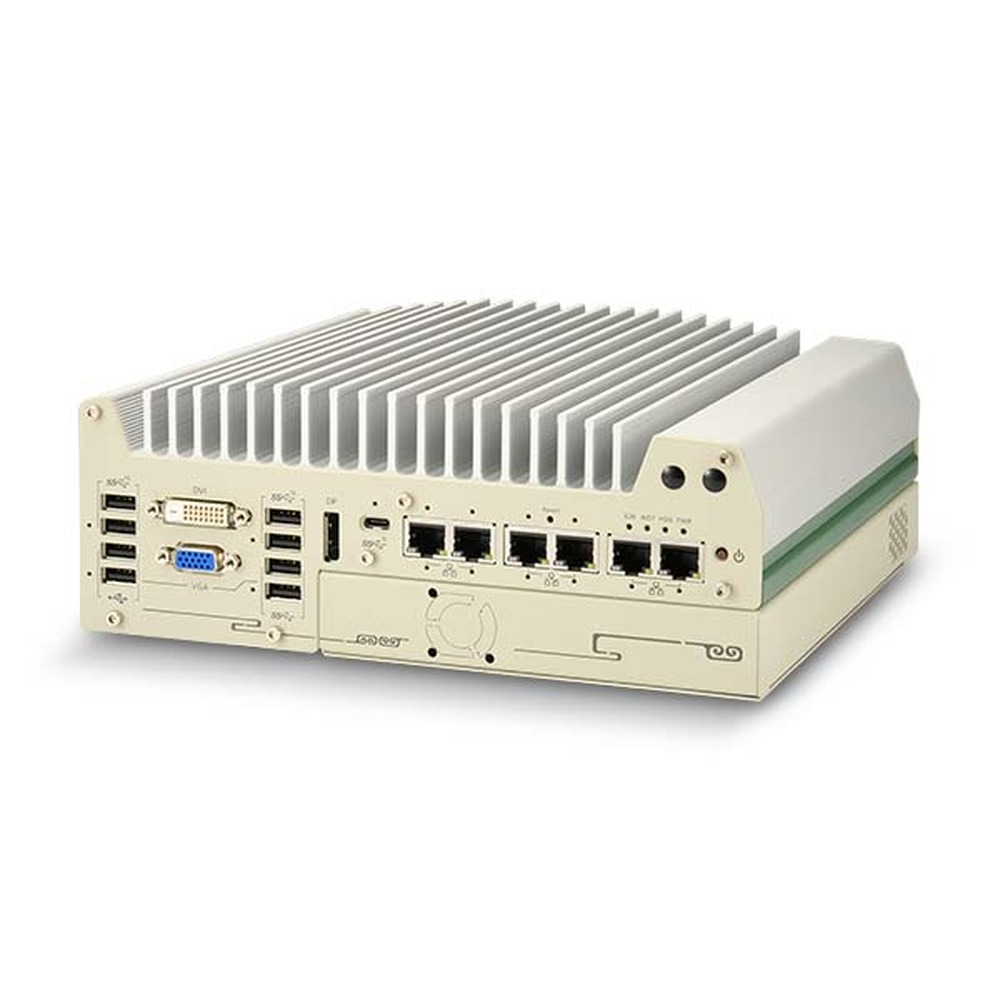
Four fanless computers for control cabinets, from a DIN rail edge AI system to a UL-certified box PC, each supplied configured and tested.
AMD Ryzen PRO 8640U Ultra-Compact DIN Rail PC with NPU and 4x PoE+
- AI
- 16 TOPS
- CPU
- AMD Ryzen PRO 8000
- Ethernet
- 4× GbE (4× PoE)
UL-Certified Intel 14th/13th/12th Gen Core Fanless Rugged Computer with Single-Slot Cassette
- CPU
- Intel Core 13th Gen (Raptor Lake)
- Ethernet
- 1× 2.5GbE, 1× GbE
- Temp
- −25 to +70 °C
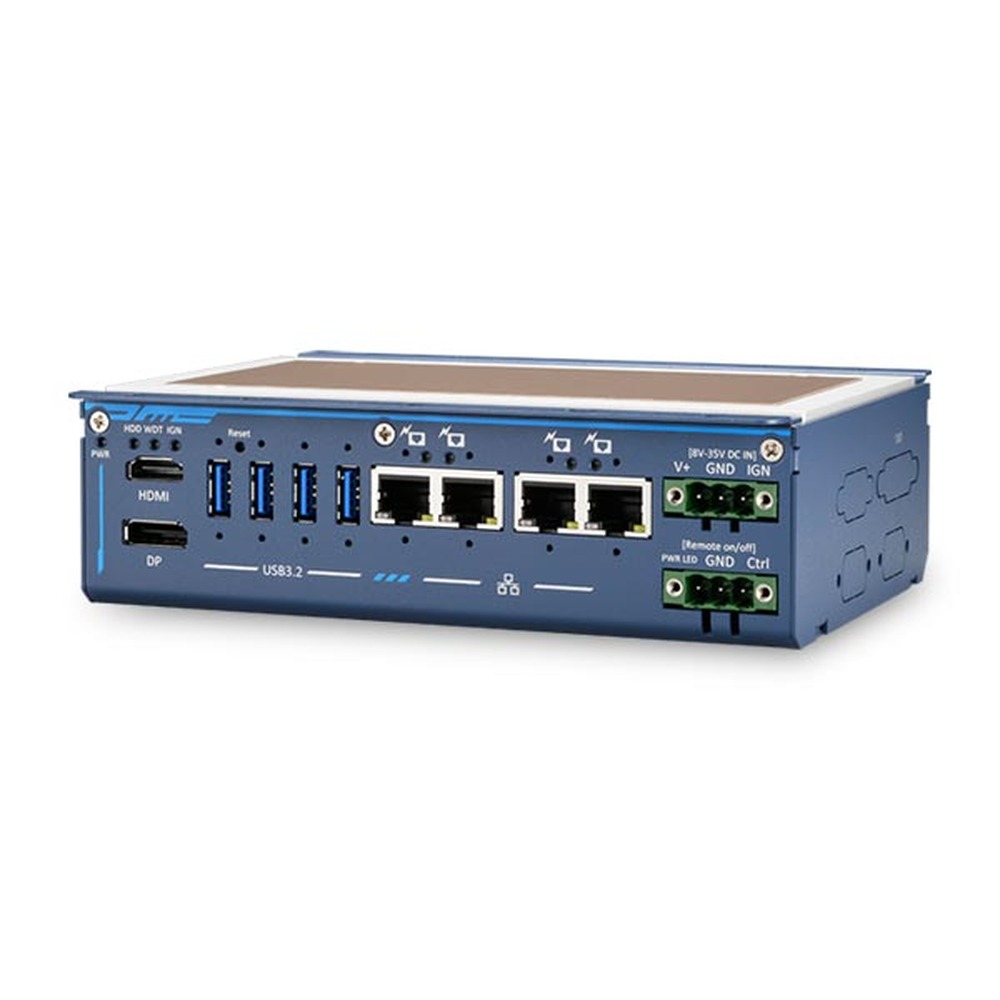
Intel Atom x7425E Flattop-Heatsink Fanless Embedded System with 4x GbE
- CPU
- Intel Atom x7425E (Alder Lake)
- Ethernet
- 4× GbE
- Temp
- −25 to +60 °C
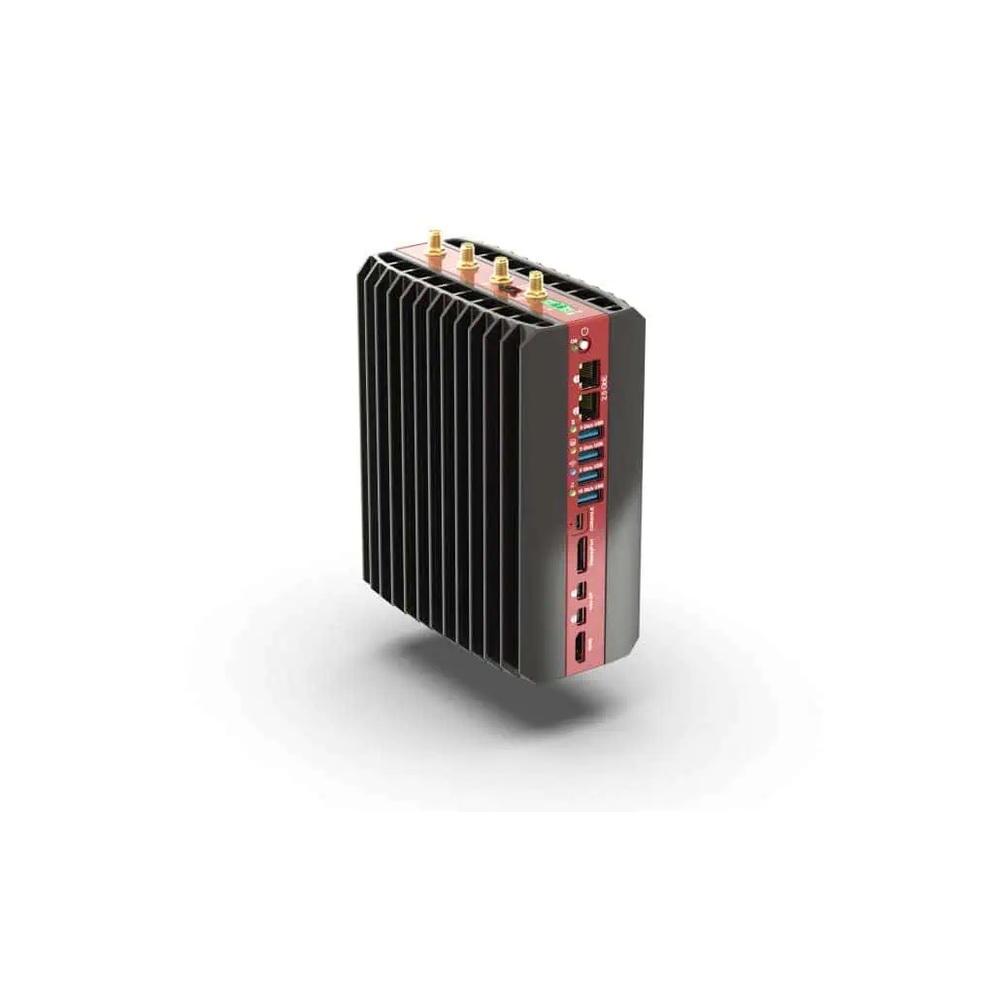
AMD Ryzen Embedded 8845HS DIN Rail Industrial PC with Hailo AI Options and 4x 2.5GbE
- AI
- 16–40 TOPS
- CPU
- AMD Ryzen Embedded 8000
- Ethernet
- 4× 2.5GbE
What else goes in the cabinet
The computer shares the cabinet with the equipment that powers and connects it.
DIN rail PCs
Compact fanless computers that clip onto the rail.
View range
Industrial UPS
DIN rail UPS and supercapacitor modules for ride-through and clean shutdown.
View range
Data acquisition and I/O
I/O modules that bring analogue and digital signals into the computer.
View range
Industrial IoT gateways
Low-power gateways that link PLCs and machines to the network.
View range
Power supplies
Industrial DC supplies sized for the computer and the rest of the cabinet.
View rangeBefore you close the cabinet door
Seven checks for a cabinet PC that keeps running.
-
01
Temperature
The computer is rated for the cabinet air at the processor power in use.
-
02
Position
Clear air above and below, fins vertical, nothing hot underneath.
-
03
Supply
Its own breaker or fuse, correct voltage and polarity, and suppression on inductive loads.
-
04
Earth
A short earth to the earth bar and a bonded chassis.
-
05
Cables
Signal and power separated, screw-lock connectors, strain relief and labels.
-
06
Ride-through
A UPS or supercapacitor module where power cuts would corrupt data.
-
07
Monitoring
Temperatures recorded under load with the door closed, and alarms set.
Control cabinet PCs: common questions
Quick answers
What is a control cabinet PC?
An industrial computer installed inside an electrical control cabinet. It is usually fanless, DIN rail or wall mounted and powered from the cabinet’s 24 V DC supply.
How do you install an industrial PC in a control cabinet?
Mount it with clear air around the fins, give it its own protected supply and earth it. Then route signal cables away from power wiring and check temperatures under load with the door closed.
How hot can a control cabinet get?
Often 10 to 20 °C above the room, and hotter at the top. In a hot plant room that can mean 55 to 60 °C inside, so rate the computer for the cabinet air.
Should an industrial PC be DIN rail mounted?
Compact ones, yes; heavier systems are better on a wall bracket. DIN rail suits computers up to a kilogram or two; above that, or on vibrating machines, use the wall kit.
Do control cabinets need cooling for fanless PCs?
Not always; it depends on the heat load and the room temperature. If the cabinet air exceeds the computer’s rating, add a filter fan, heat exchanger or air conditioner, or lower the processor power.
Can a fanless PC share the cabinet power supply?
It can, if its input is well protected and inductive loads are suppressed. A dedicated supply is safer, because relays and solenoids can send voltage spikes back down the line.
Cabinet installation FAQs
-
What Is a DIN Rail?
A DIN rail is a standard metal rail used to mount electrical and control equipment inside cabinets. The most common type is the 35 mm top-hat rail defined in EN 60715. Circuit breakers, power supplies, PLCs, terminal blocks, network switches and compact industrial PCs clip onto it side by side, which keeps wiring tidy and makes parts quick to swap.
-
What Is a PLC?
A PLC (programmable logic controller) is a rugged industrial computer that controls machines and processes. It reads inputs from sensors and switches, runs a control program in a fast repeating cycle and switches outputs such as motors, valves and lamps. PLCs replaced hard-wired relay panels and now run most factory, utility and building automation.
-
What Is Electromagnetic Interference (EMI)?
Electromagnetic interference (EMI) is unwanted electrical noise from one source that disturbs the working of another circuit or device. It travels along cables (conducted EMI) or through the air (radiated EMI), and comes from motors, switching power supplies, radio transmitters, lightning and static discharge. EMC standards limit how much a product emits and how much it must tolerate.
-
What Is a Supercapacitor?
A supercapacitor, also called an ultracapacitor, is an energy storage device that holds charge electrostatically at the surface of porous carbon electrodes rather than through a chemical reaction. It charges and discharges in seconds, lasts hundreds of thousands of cycles and works from about −40 °C, but stores far less energy than a battery of the same size.
-
What Is a Watchdog Timer?
A watchdog timer (WDT) is a hardware countdown that resets a computer or microcontroller if its software stops responding. Healthy software restarts the countdown at regular intervals. If the software hangs and the timer reaches zero, the watchdog triggers a reset, so an unattended system recovers by itself instead of waiting for someone to restart it.
-
Enclosure Air Conditioner vs Heat Exchanger: What Is the Difference?
An enclosure air conditioner uses a refrigeration circuit, so it can hold the inside of a cabinet below the temperature of the surrounding air. An air-to-air heat exchanger only passes heat through a sealed core to cooler outside air, so the inside always stays warmer than the room. Both keep the enclosure sealed; the hottest outside air decides which works.
-
What Are the Advantages of Fanless Computers?
Fanless computers cool themselves passively, through a finned heatsink chassis and heat pipes, instead of a fan. With no moving parts and no airflow drawing in dirt, they are more reliable in dusty or vibrating places, silent, low maintenance and easy to seal, which is why they are the standard choice for industrial and embedded use.
Have questions about installing a cabinet PC?
Tell us what the computer has to run, the supply in the cabinet, how much space there is and the hottest air it will see. We will recommend a cabinet PC to suit, then configure, image and test it before it ships.